Bad meetings – we’ve all sat in those meetings. No agenda, no memos, no follow-ups, no decisions. Nothing is happening in between meetings, and it feels like we are just having a routine for getting together to progress the matter at hand. Productive? Not really, more of a waste of everyone’s precious time.
I’m a very lousy note taker in meetings. I start with a good flow, but when the meeting really requires my focus, I’m presenting, coaching or innovating, my note-taking starts to fall apart. Also adding meaningful agendas is not my cup of tea.
Facilitator Agent, one of the pre-made agents in Microsoft 365 Copilot, is now available for users with Microsoft 365 Copilot add-on license.
Meetings begin with a good agenda
The meeting is scheduled for Monday morning starting at 9.00 sharp, but it’s not really the time when a successful meeting starts. It always starts with the preparation beforehand, drafting the agenda, sharing the materials, and most of all reserving some time to prepare for the meeting. In this current AI-era it’s even more important to add a detailed agenda and share materials with the invitation. Copilot can assist you with agendas.
Better agendas with Copilot
When creating a new meeting, you can utilize Copilot for creating the agenda for it based on the subject and participants. These are ideas for you to add more detail manually or with Copilot.
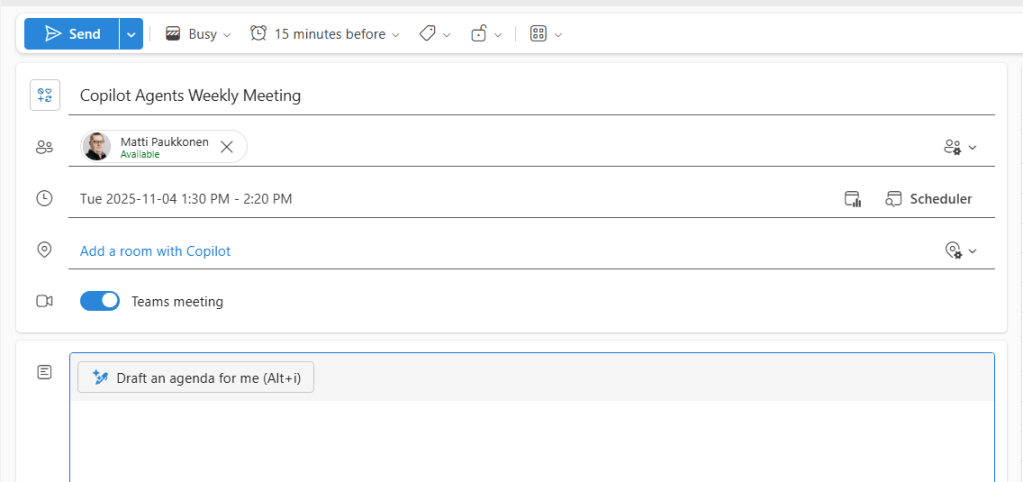
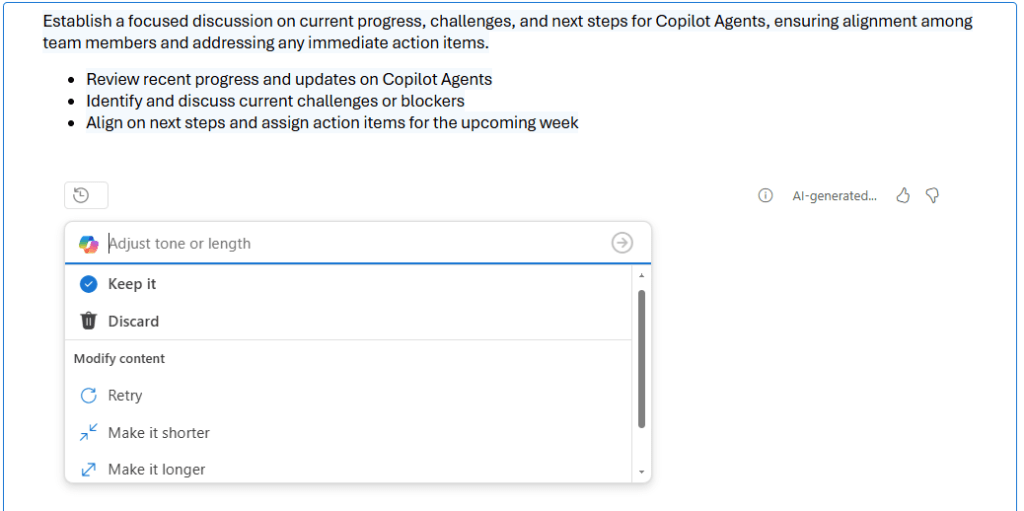
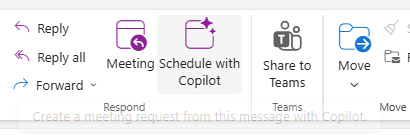
Having a long email conversation about a specific topic? Schedule with Copilot can help you drafting the agenda, creating the subject, adding participants, and adding the conversation as a reference.
More details and content means more for the Copilot to crunch on, and assist participants to be better prepared.
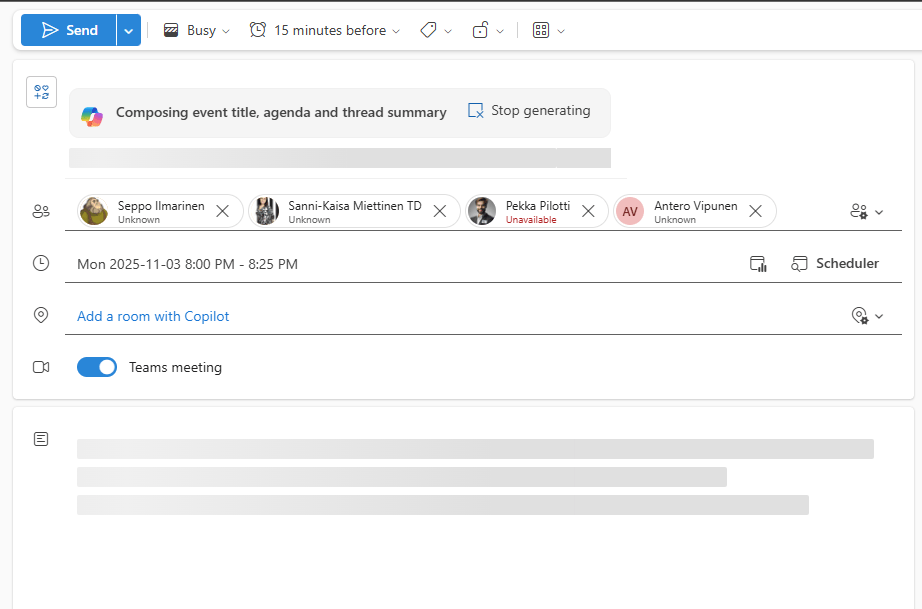
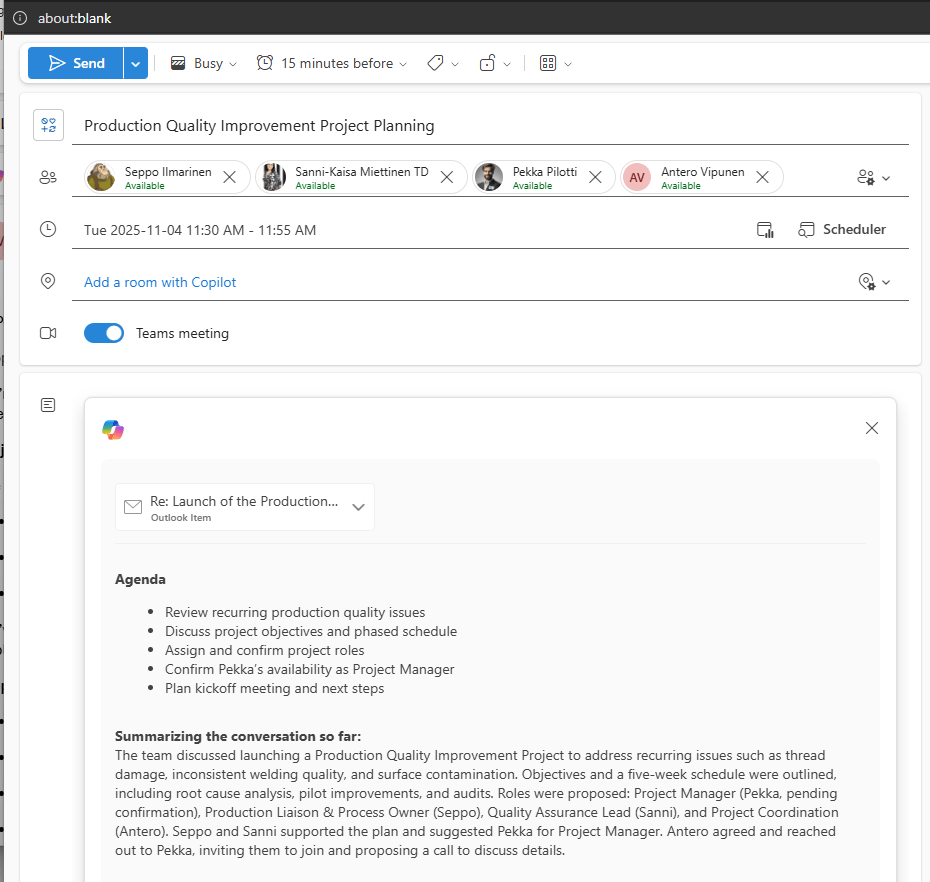
Sadly, the actual scheduling is still your responsibility, but perhaps someday Copilot will assist with that too.
Looping the agenda
Currently, when creating a new meeting on Teams’ calendar, you can enable the Loop-based agenda. It is a more collaborative way to prepare meetings agenda and materials together with you colleagues. Just click Add an agenda from the bottom of the meeting invitation.

That Loop acts also as the meeting memo, which is used by the Facilitator Agent and it will appear on the Notes pane in meetings. When the Loop agenda is added, it will already have sections for agenda items, meeting notes and follow-up tasks. Since it’s a flexible canvas, you can add more sections and utilize different Loop components, such as voting tables or agenda planners. Remember, add the subject to the meeting before adding the Loop agenda so it will named better.
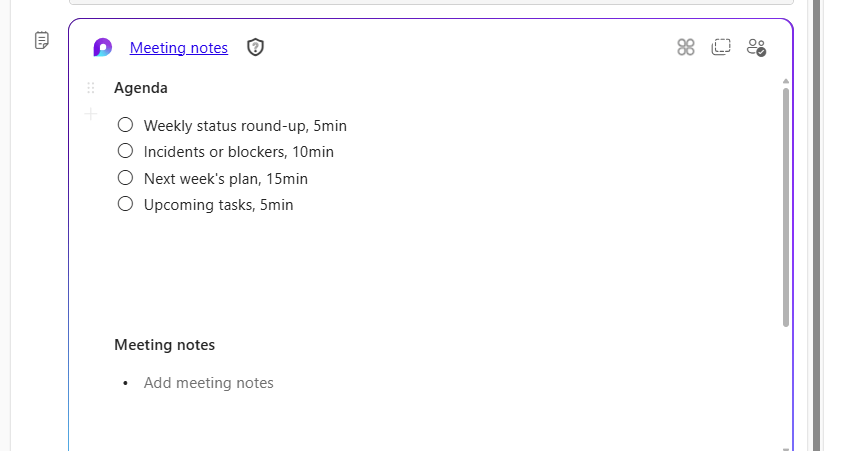
Why did I add some timeboxes to the example? The Facilitator Agent can utilize those and show the meeting progress, and it’s easy for everyone to follow where the meeting is at.
Note, that if you have external participants invited, it’s better to use traditional agenda in the meeting invite, because Loops are not yet so shareable with other organizations.
Engage the Facilitator for notes and tasks
The Facilitator agent is your assistant for meetings. It will take notes, gather goals, create follow-up tasks and answer to your questions. You can enable the Facilitator directly on the meeting invite, meeting options or control it when the meeting is already running.
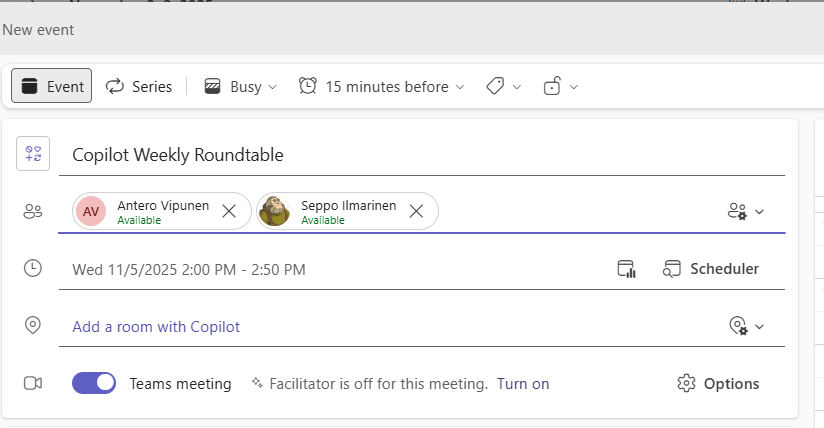
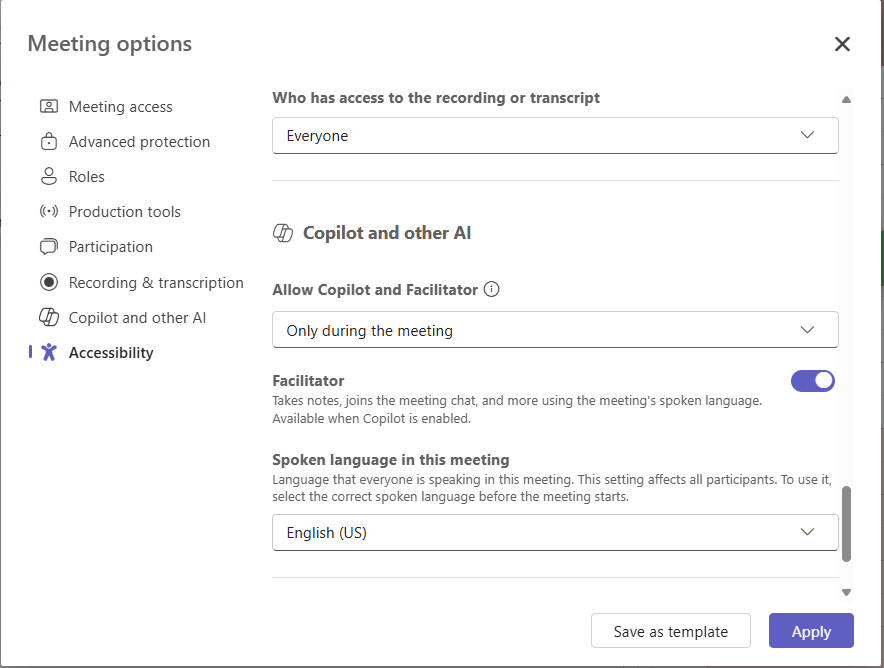
Check also the meeting options to pick the correct language. And, if you want to use Copilot after the meeting, change the Copilot and Facilitator setting to During and after the meeting.
When the meeting is running, the Facilitator Agent will show a visual timeline for the meeting based on agenda, either on the meeting invite or within Loop agenda, and you have control over the timeline by adding timeboxes for agenda items.
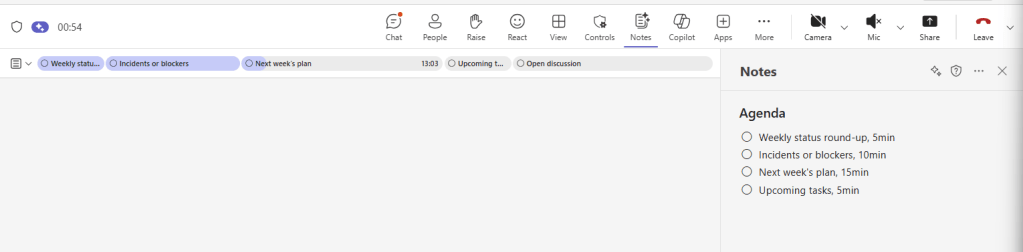
The visual timeline is a great addition for keeping meetings focused and aligned with the agenda. Showing the progress of the meeting helps participants to see and be aware where the meeting stands. In recurring meetings, it also helps measure how much time different topics consume and adjust the agenda.
After some minutes or so, the agent will start writing notes to the Notes section and adding tasks to follow-up tasks list. Notes are collaborative, so everyone who have access to them, can start writing, detailing, and correcting notes. Same goes for tasks. It’s good to remember that we are responsible, and cannot hide behind “Copilot did this” clause.
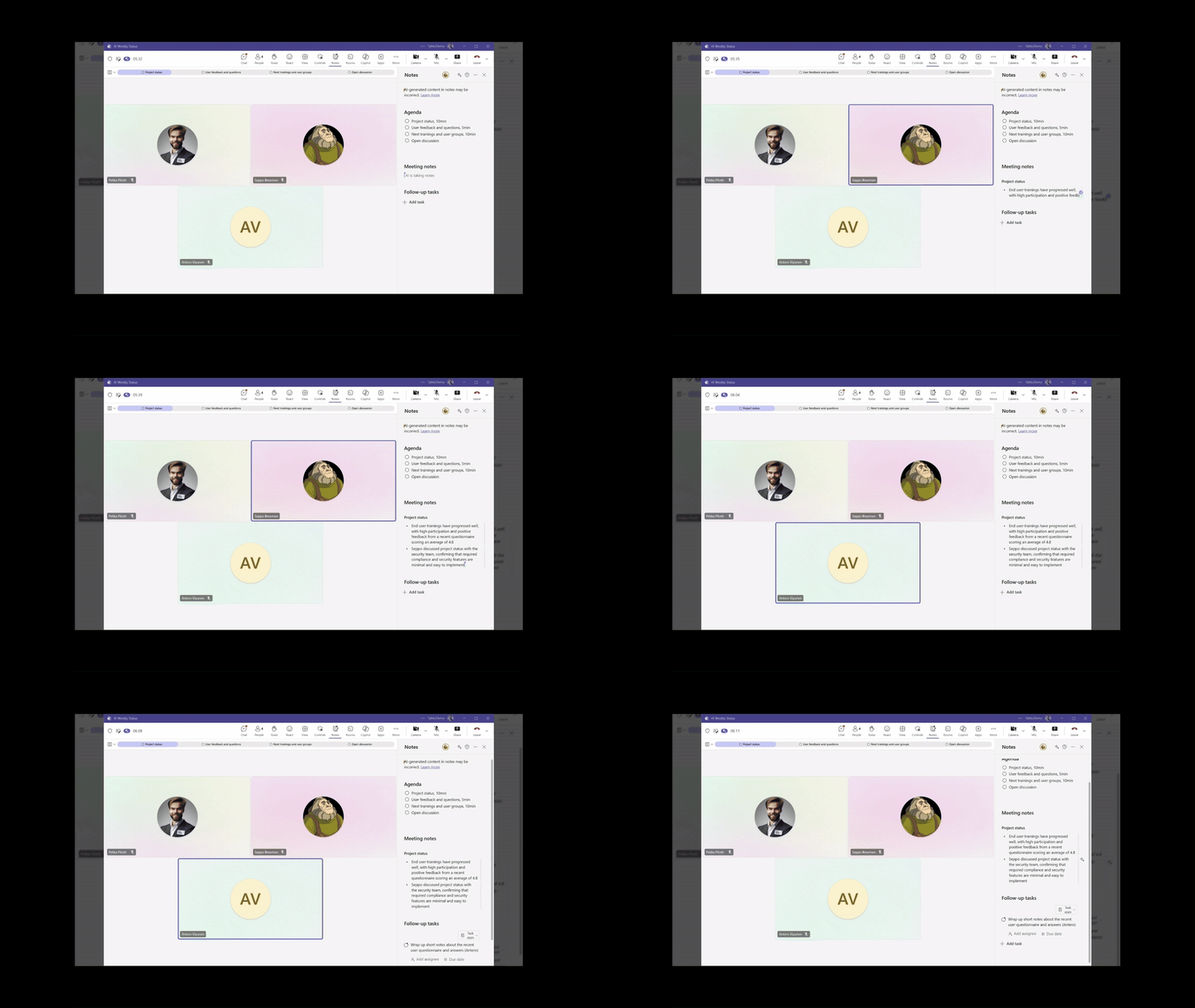
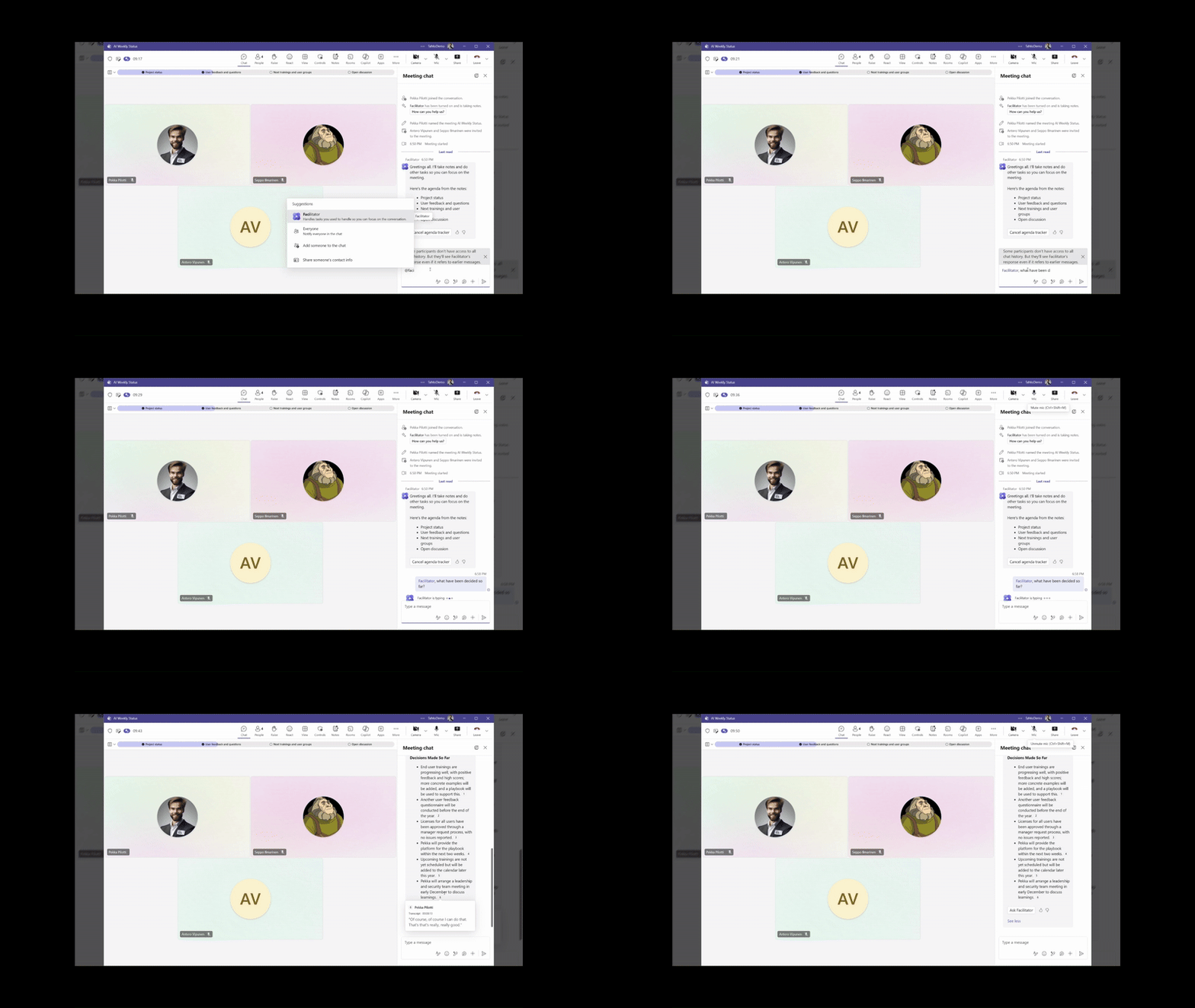
The Facilitator Agent is also active in the meeting chat. It will summarize the agenda and goals at the beginning, remind in the middle about made decisions and topics to be discussed, and summarizes decisions and meeting notes at the end.
You can also chat with the agent, for example, ask what have been decided so far or search information. The best part – everything stays in the same meeting context, and can be discovered afterwards.
After the meeting
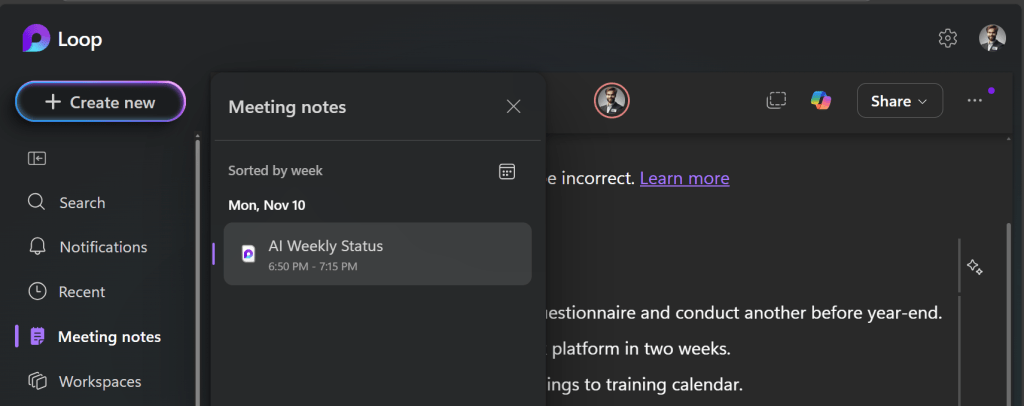
When the meeting has ended, reserve some time to review and finalize the meeting memo, review and assign tasks. The Facilitator Agent creates a detailed memo, task list and summarizes made decisions, but you need to check and correct the terms, add more details, correct names and assign the valid tasks. Notes, tasks and summaries can be accessed later from meeting recap or from Loop app. Assigned tasks appear to user’s task list on Planner.
Meeting memos can be accessed from the meeting recap, which is linked to the event, Teams chat, or using Loop app’s meeting notes view on Teams or via browser.
Advantages of the the Facilitator
Gain better focus: Facilitator really helps focusing on the meeting. Our brain is not setup for multitasking, so when you are writing the memo, you cannot really focus on the matter at hand in the meeting. Seeing meeting progress visually, helps focusing on upcoming topics and closing conversations on time.
Bring up tasks: Facilitator can pick up tasks from the discussion, and add them to the real task management tool, not just hanging in out OneNotes or Word documents. When tasks are assigned, every one can follow them collectively on the meeting notes and personally on their tasks list on Planner.
More detailed notes: Facilitator is not getting tired during the meeting, and picks up important topics to notes. Also, summarizing decisions is sometimes missing, and it’s easier to see what happened from the summary.
Set up some ground rules for meetings
Now, technology is already here, but we need to be ready take advantage of it. Copilot and Facilitator are great helpers for running better prepared, more focused, documented meetings, but we need to setup some ground rules how we utilize these tools and, most of all, work together.
Agendas are mandatory!: Agree that each meeting needs to have an agenda in some format and needed materials shared to participants.
Meeting lifecycle: Create a playbook for a successful meetings. Starting with agenda and shared materials, utilizing the chat for preparing the meeting in asynchronous way, how meetings are run and decicions are made, and finally, how meetings are followed and things are getting done between meetings.
Tools for sharing notes and tasks: Agree on tools where notes are shared and tasks are managed. Loop-based memos and Planner are a Copilot-ready.
Afterword
Is AI finally solving the bad meeting habits we seem to have? Not really, but it’s a great enabler for us to focus better. Try, learn and share, that’s the way to start. Enable the agent to your meetings. Explorer created memos and tasks. Experience Loop with your team. And when you find something that works for your organization or team, make it a habit – and document it for later.
Discover more from Enabling the Future of Work with Matti
Subscribe to get the latest posts sent to your email.
 Enabling the Future of Work with Matti