OpenAI has released a new feature that allows work-related documents from SharePoint and user’s OneDrive to be connected to ChatGPT’s Deep Research. The current released version is in beta, and available for Plus, Pro and Team subscription of ChatGPT. According to OpenAI’s documentation (https://help.openai.com/en/articles/11367239-connecting-sharepoint-and-microsoft-onedrive-to-chatgpt-deep-research) ChatGPT generates search queries against document libraries and retrieves documents based on those query. However, users currently need to manually select the files to be analyzed. Maybe the broader version of the integration is not yet fully functional.
Setting up the connector is straightforward. First, access must be granted—either through the Connected Apps section in ChatGPT’s settings or by selecting the connector from the compose box.
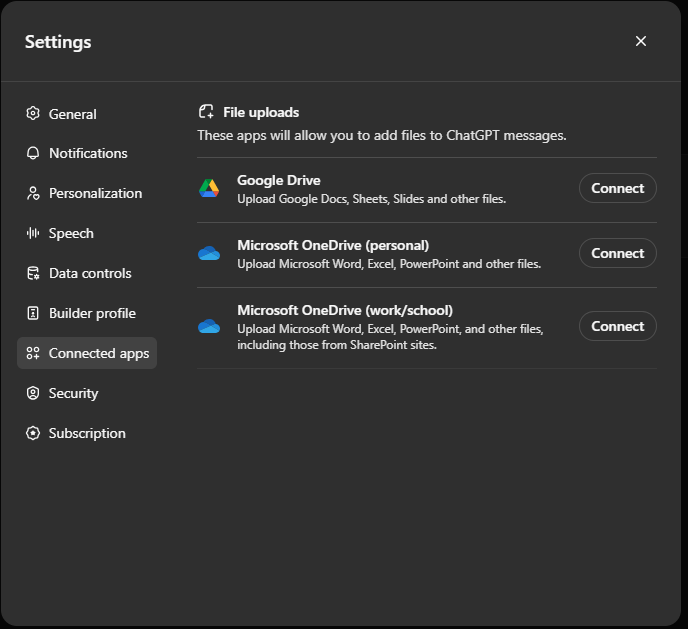
When Microsoft OneDrive (work/school) app is connected, it requires signing in with the user account used to access Microsoft 365. Once sign-in is complete, it will ask to preview permissions which ChatGPT requires to access the data. Let’s stop here for a little bit, and check what permissions are actually required.
Connector uses Microsoft Graph API to access organization’s data with delegated permissions, meaning it accesses data using user permissions. Connector requires permissions to all files and lists items from all site collections where user has access to, and maintain access it has been given to. User permission on SharePoint and OneDrive are still respected, and if, for example, user permission to certain SharePoint site is removed, connector cannot access the data either.
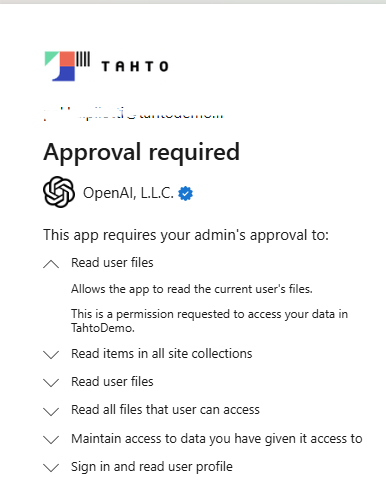
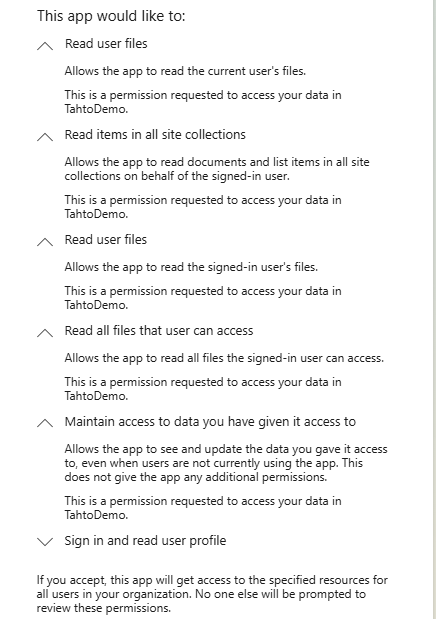
As a side note, as seen in the screen captures above, organizations should have governance controls in place in Entra ID to prevent users consenting permissions to not supported apps by the organization. So, when connecting ChatGPT to the organization’s data in Microsoft 365, admin operations may be required depending on the application governance controls.
Once permission is granted by the user or admin, files from OneDrive and SharePoint can be added in the compose box. ChatGPT documentation states that it will search information from SharePoint and OneDrive, but currently I could only pick files for it.
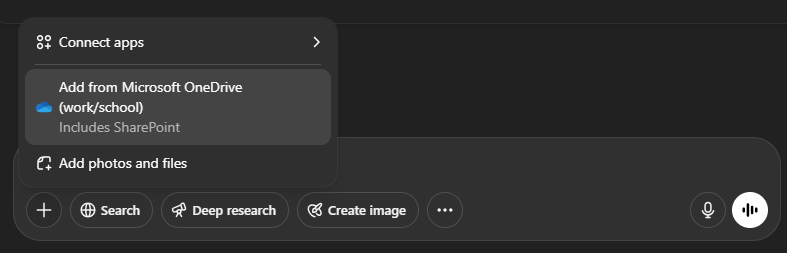
Users can select files using the familiar Microsoft 365 file picker. Currently, picking 10 files living within a single folder is supported, meaning ChatGPT cannot analyze all accessible data yet.
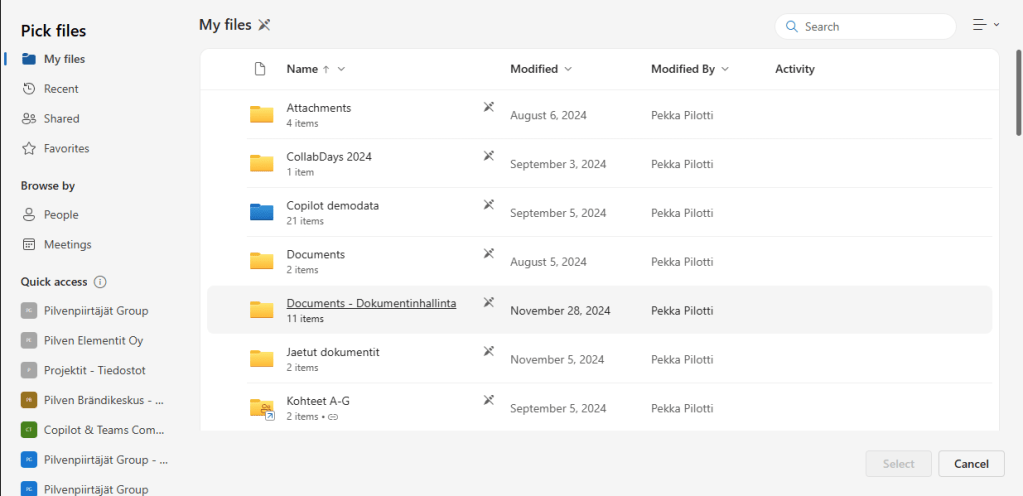
User is also warned when file limit is reached, and only 10 files are added to analysis.

Let’s run the first analysis
Okay, I picked 10 imaginary production reports from a folder, let’s analyze them with the Deep Research.
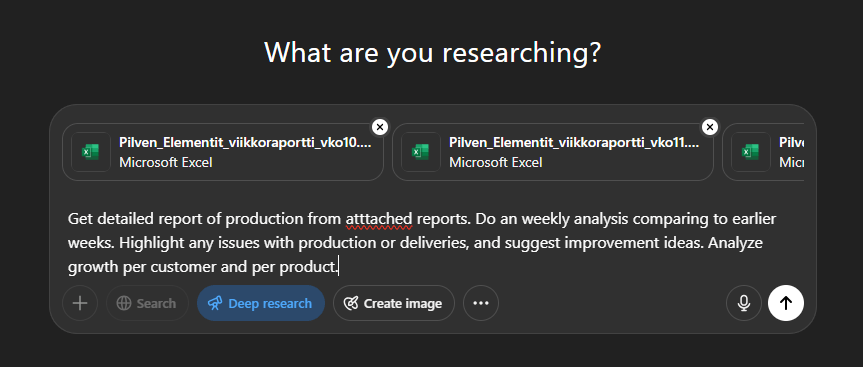
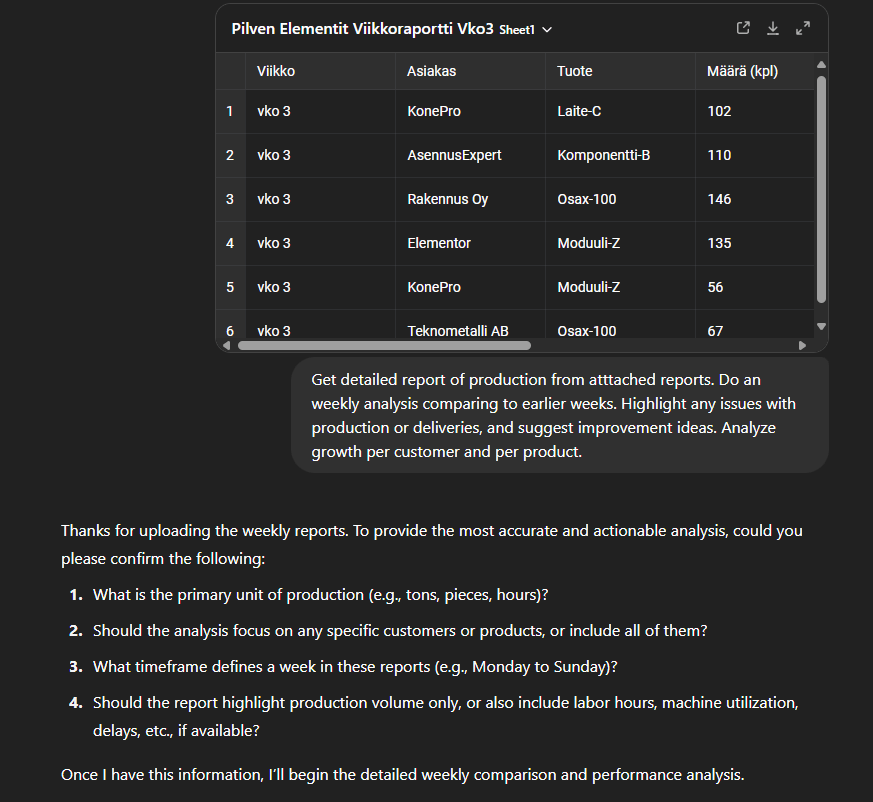
The files were Excel spreadsheets, and as a first step, ChatGPT imports their content as tables into the session, then asks a few clarifying questions.
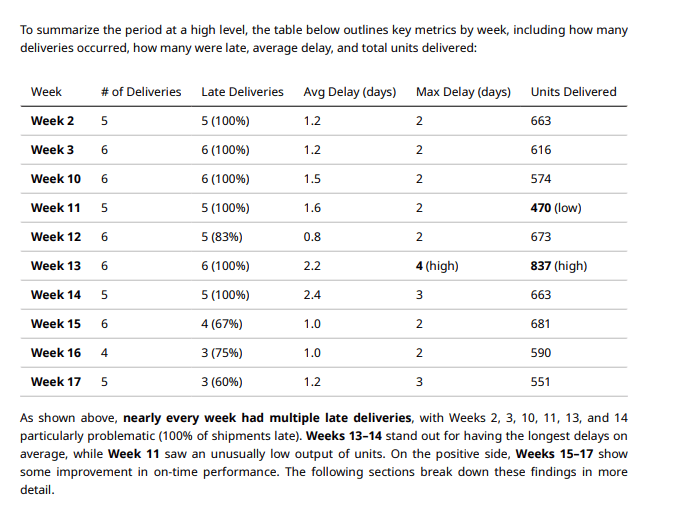
And the result? Just WOW! I got professionally styled report including short overview, summary table of weekly delivered items, analysis of volume trends, delays and schedule changes including graphs, a deeper analysis of weekly issues and a conclusion in a five page PDF document. Here are some examples from the report:
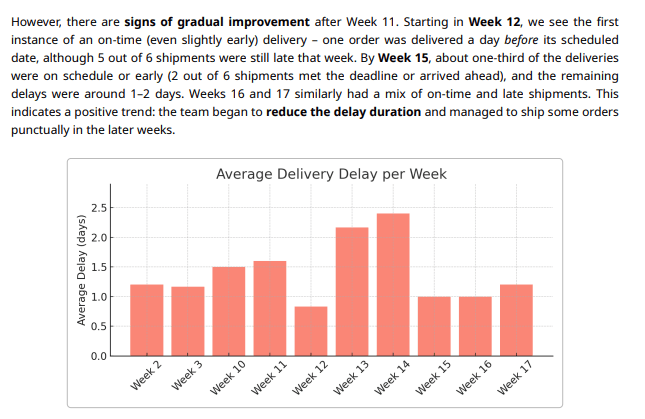
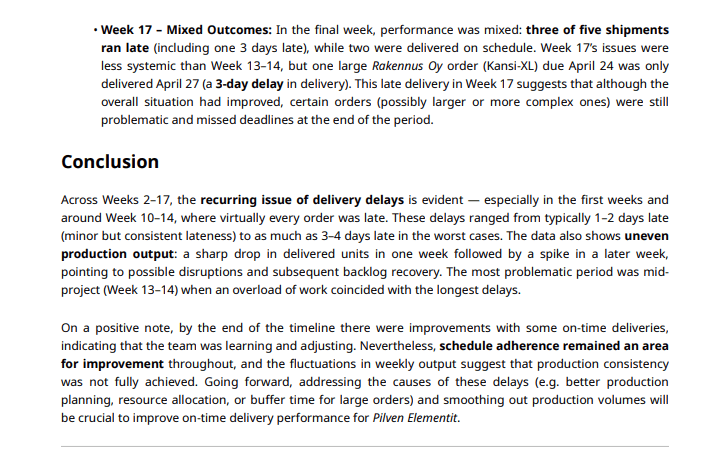
You can, of course, use ChatGPT’s language models without Deep Research capabilities to analyze and summarize files.
Comparison of Microsoft 365 Copilot’s current capabilities and ChatGPT Deep Research
This is kind of an unfair comparison, since ChatGPT is utilizing more recent reasoning models. I have been analyzing same files using a Microsoft 365 Copilot Agent created with the Agent Builder. Results are basically the same, but ChatGPT Deep Research provides more detailed and well-reasoned analysis. It’s far more advanced and ready than Copilot’s analysis. I’m not saying Copilot is bad, no, it’s just not there yet. Reasoning capabilities are coming soon for Microsoft 365 Copilot with recently announced Researcher agent as well, and I can’t wait to try them out.
Security and Compliance
At this point, every organization should carefully assess whether they can safely enable ChatGPT’s access to their data. This is just one technical guard-rail, we also need to educate users and agree common ground rules how AI tools are used in the organization, what data can be handed over to ChatGPT and what data shouldn’t be accessible or handled using AI. One advantage of the integration compared to just uploading files directly is that files brought to ChatGPT via integration are not available via ChatGPT. If a user wants to open the original files, they need to have access to original OneDrive or SharePoint location.
These aspects should also be considered:
- User’s identity: If users are sign-in to ChatGPT with their personal accounts, there is no security controls. Guide users to enable at least MFA for ChatGPT.
- Privacy settings: Model improvement should be switched off from ChatGPT’s settings, otherwise your data might used to train the underlying large language model. Common practises and guidance for users are really important.
Final Thougths
These new AI reasoning models are expanding capabilities of analyzing large quantities of content, creating new ideas and generating insights. I have been using ChatGPT’s Deep Research mostly for enhancing and structuring my ideas, and creating something new and fresh. And every time it amazes me.
ChatGPT’s integration to Microsoft 365 is very simple. I would really like to see how it behaves, when search capabilities are enabled and you could just get results from files based on your prompt.
While this integration allows me to use my organization’s data, I’m still eagerly waiting Deep Research features to Microsoft 365 Copilot. The Researcher and the Analyst agents for Microsoft 365 Copilot should be available in next few months. It expands the capabilities even more, and on the data governance perspective, data is not moved outside of organization’s Microsoft 365 environment.
Discover more from Enabling the Future of Work with Matti
Subscribe to get the latest posts sent to your email.
 Enabling the Future of Work with Matti