Creating Microsoft Mesh avatars on Microsoft Teams using your photo just entered public preview. This really simplifies and speeds up avatar creation. An avatar can now be created from capturing a photo using your camera or uploading a photo taken earlier. Avatars are created in Teams using an Avatars app, which can be found from the left rail. If the app is not available, you might want to ask your admin to enable it.
AVatar creation starts by clicking + from the avatar picker and choosing Create from photo. If you already have three avatars created, you need to delete one.
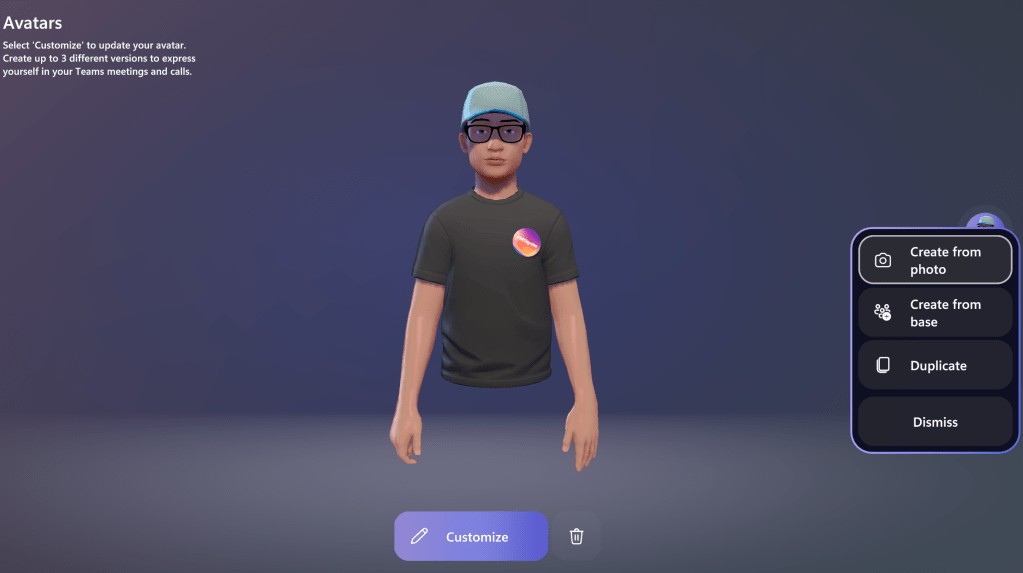
Create an avatar using a camera
Let’s create the first avatar by using a camera by selecting Use Camera. Keep these instructions in mind when taking your photo.
- Look directly in the camera and keep face in the center
- Neutral face expression
- Remove sunglasses and headwear
- Have a well-lit environment
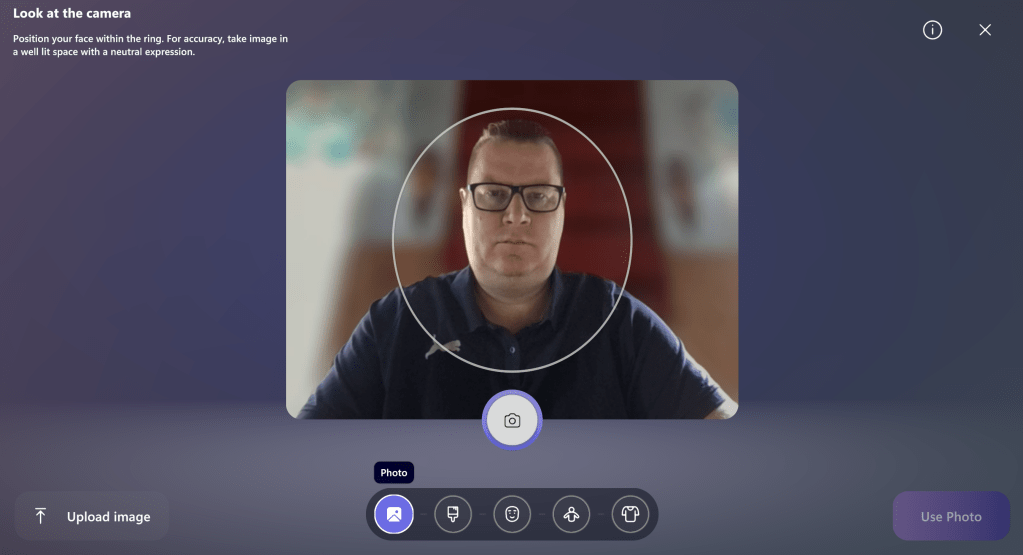
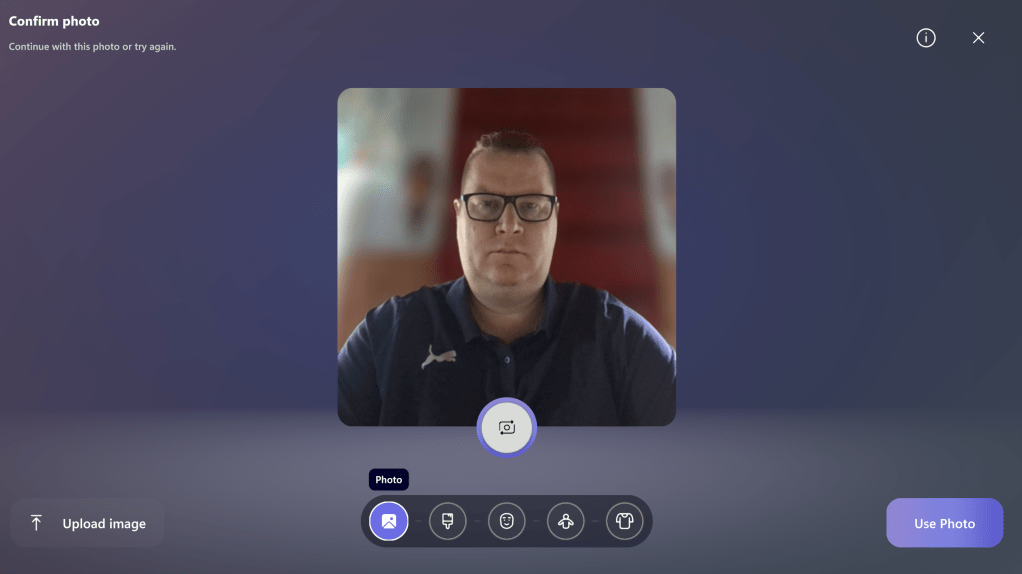
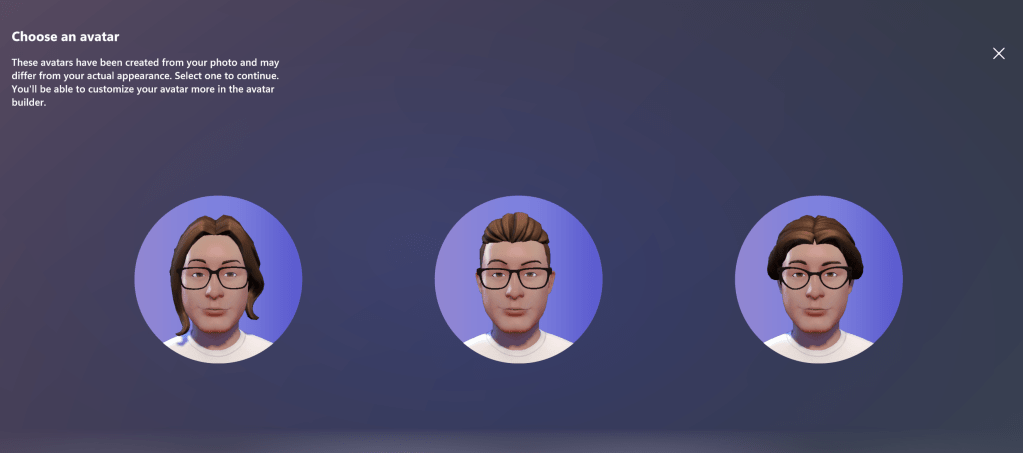
When you are happy with your photo, choose Use Photo. The app asks you to set your skin tone on the next step. After generation phase, the app will provide three options. I guess the middle one is quite close, let’s pick that.
Then the app guides you to set your body shape and pick an outfit from premade suggestions. You can customize these later.
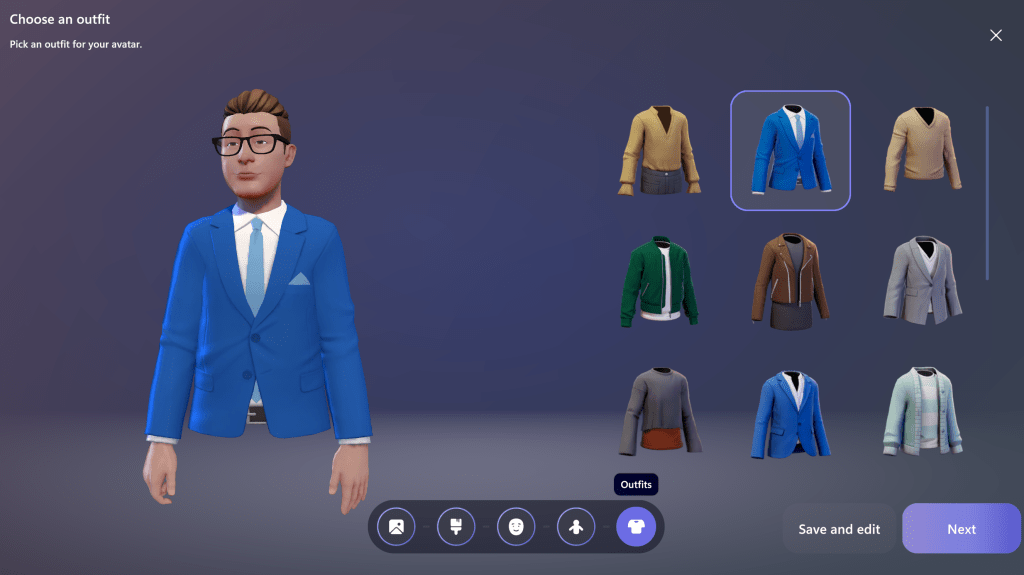
After that you’re done!
Create an avatar from a photo
You can create the avatar using a photo by selecting Upload image. The photo should follow these conditions
- File format: jpeg, bmp or png
- Photo size: 360×360 to 4096×4096 pixels, and not over 10MB
Photo should also follow the same instructions as photo taken with the camera. Let’s try it – upload an image, pick your skin tone and wardrobe.
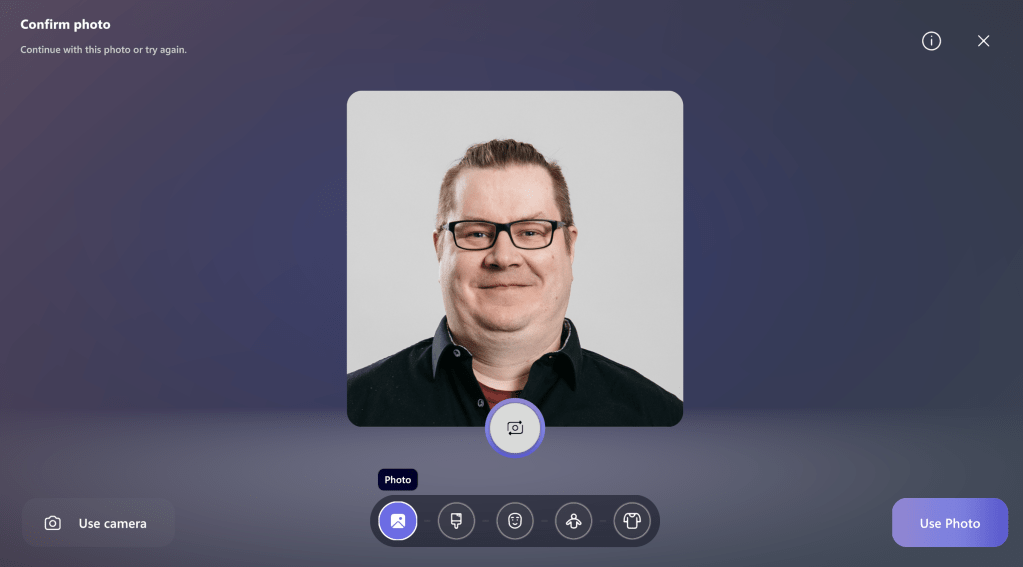
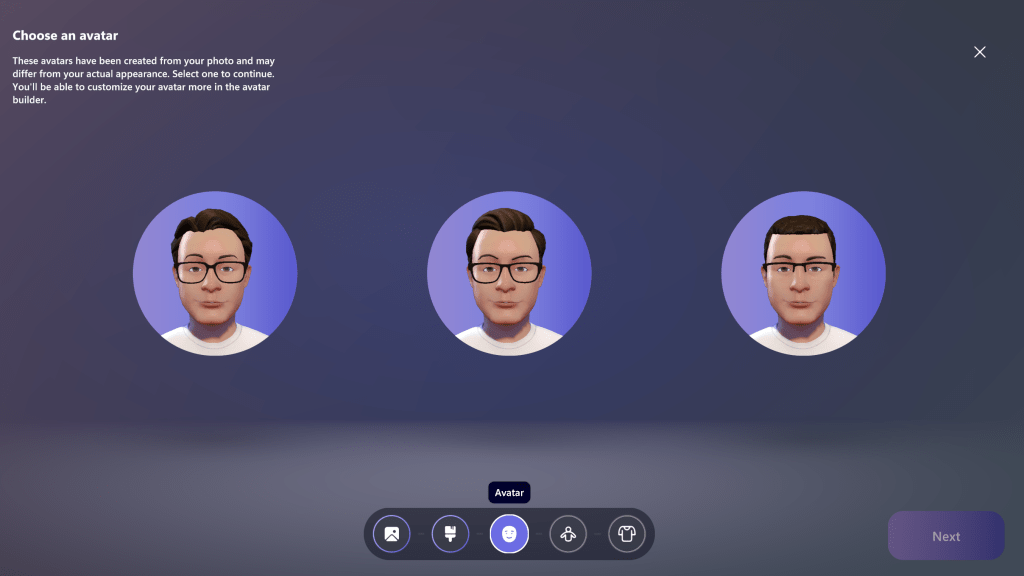
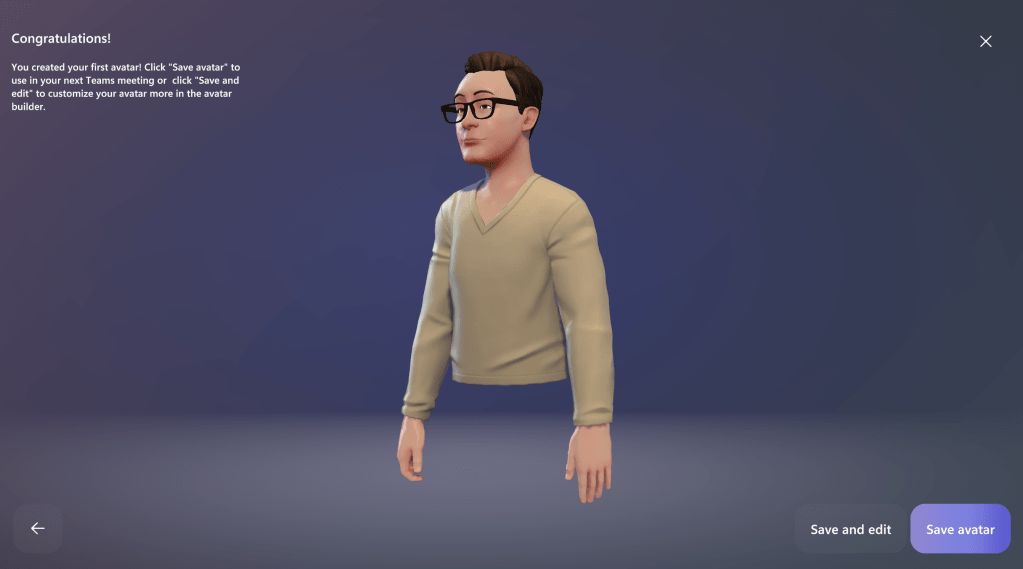
Results from the photo were quite decent. It missed my hairstyle, but it wasn’t visible enough in the photo since creation using a camera did capture it. Luckily, I can just continue and customize my avatar.
Layout changes to the avatar customization
The layout of the avatar customization has also changed a bit. Now customization categories are on the top, available options on the left, and settings on the right. You can do a lot of tweaking to your avatar to express yourself. New clothing options were also added couple of weeks back, check those out as well.
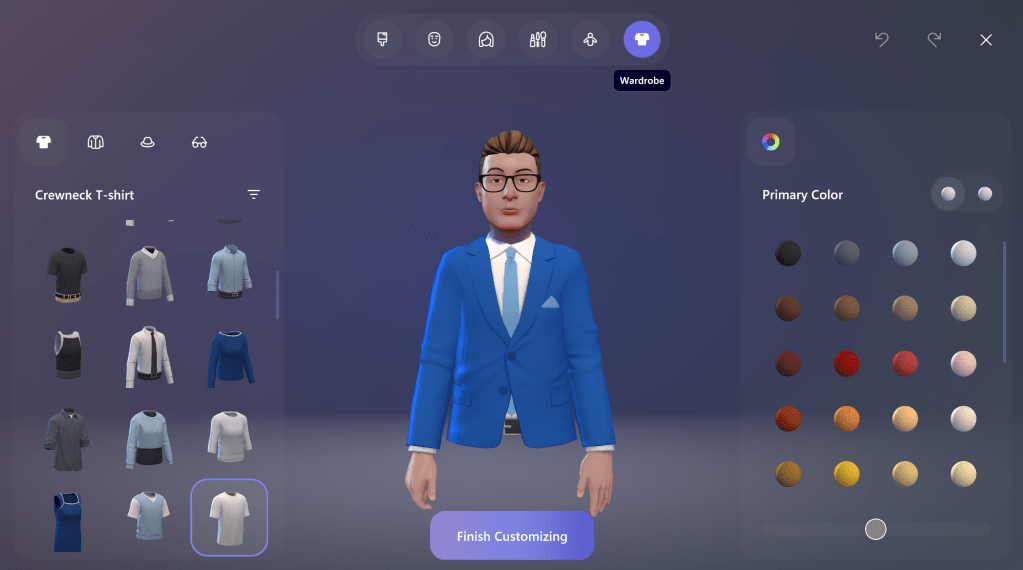
I guess I’ll change to something more casual like Teams-purple t-shirt.
Now your are avatar-enabled for your meetings
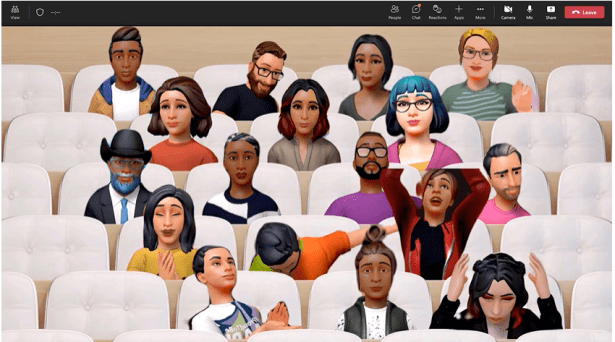
Once you’re happy with your avatar, you are ready for appearing as an avatar on regular Microsoft Teams meeting or jumping in to an immersive 3D space with your friends and colleagues.
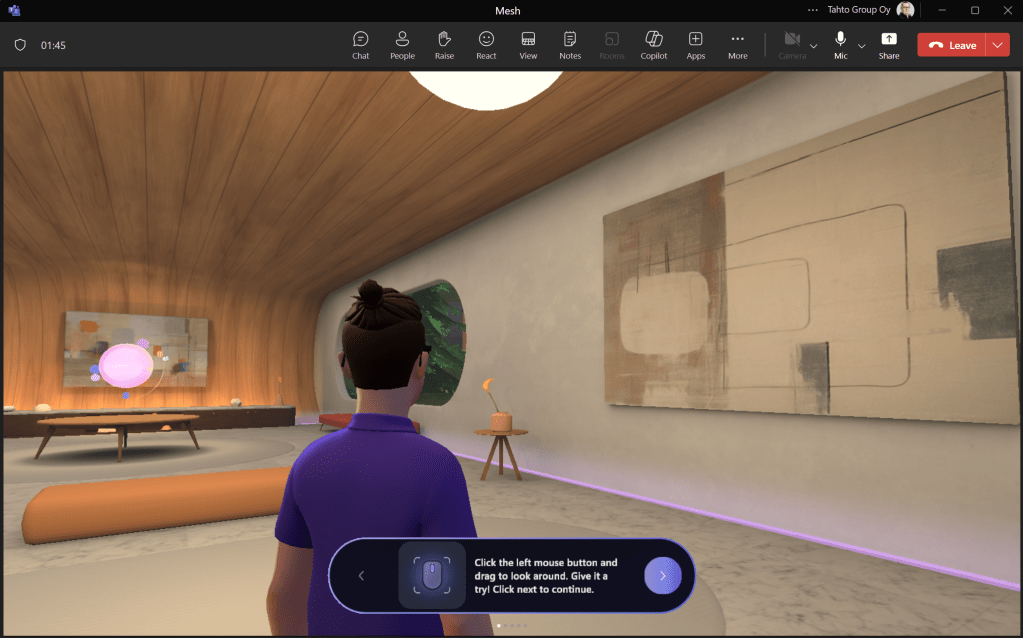
To explore more, check out my earlier blog articles about Mesh Avatars.


Discover more from Enabling the Future of Work with Matti
Subscribe to get the latest posts sent to your email.
 Enabling the Future of Work with Matti