Remember the hassle switching between AzureAD and AzureADPreview PowerShell modules to update certain directory settings, for example limiting Microsoft 365 Group creation or enabling Microsoft Purview Sensitivity Labels for Microsoft 365 groups. Sometimes, it’s a struggle, especially in a hurry. Directory settings can also be updated using a browser and Microsoft’s Graph Explorer tool.
Currently, managing directory settings are available on beta endpoint of Graph API, not production ready, but Microsoft also advises using it with the Graph PowerShell SDK on certain cases. For example, how to configure group creation settings can be found here: https://learn.microsoft.com/en-us/microsoft-365/solutions/manage-creation-of-groups?view=o365-worldwide
Graph Explorer – what is it?
Graph Explorer is a browser-based tool supplied by Microsoft for playing around with Microsoft Graph API. It’s especially useful when building solutions on top of Graph API, testing, discovering things, and for changing objects and settings quickly.

Graph Explorer can be explored with sample data using simple queries. When signed into the tenant, the tool can access all tenant data available via Microsoft Graph API.
Configuring group creation restriction with Graph Explorer
In this example, Graph Explorer is used to disable group creation and configuring a group, which members can create groups. This setting is useful when group, team, and SharePoint site creation is limited to certain people or are created using automation.
First thing is to open the Graph Explorer (https://developer.microsoft.com/en-us/graph/graph-explorer) and sign into the tenant which is going to be managed from the small person icon on the top-right corner.
Note! You need to use a user with Global Administrator role to consent API permissions.
Permissions
Graph Explorer dislays required permissions for calling the API in the Modify permissions tab. Permissions that require admin consent can be consented directly there. These permissions will be added by default for the user to Graph Explorer service principal in the Entra ID.

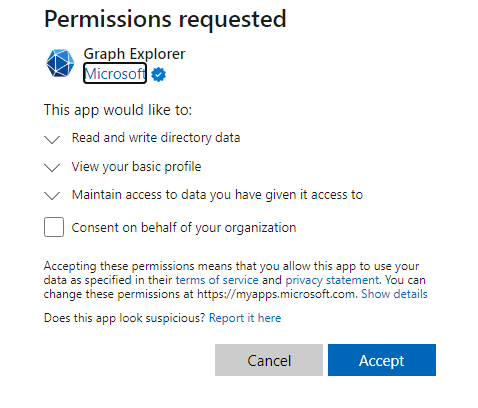
On the consent screen, like figure above, I recommend leaving Consent on behalf of your organization setting empty since permission should only be consented to the current user.
Step #1: Discover directorySetting template and check is directory setting already applied
First, the ID of the directorySetting template needs to be discovered with Graph API call. We want to return only displayName and Id of setting templates, which is achieved adding a select OData query to the end.
HTTP GET https://graph.microsoft.com/beta/directorySettingTemplates?$select=displayName,IdWith Graph Explorer, the call URI is added to the address bar.

In the results we can discover the id of the Group.Unified setting template and use the Id to discover what settings are included in the template using:
HTTP GET https://graph.microsoft.com/beta/directorySettingTemplates/62375ab9-6b52-47ed-826b-58e47e0e304b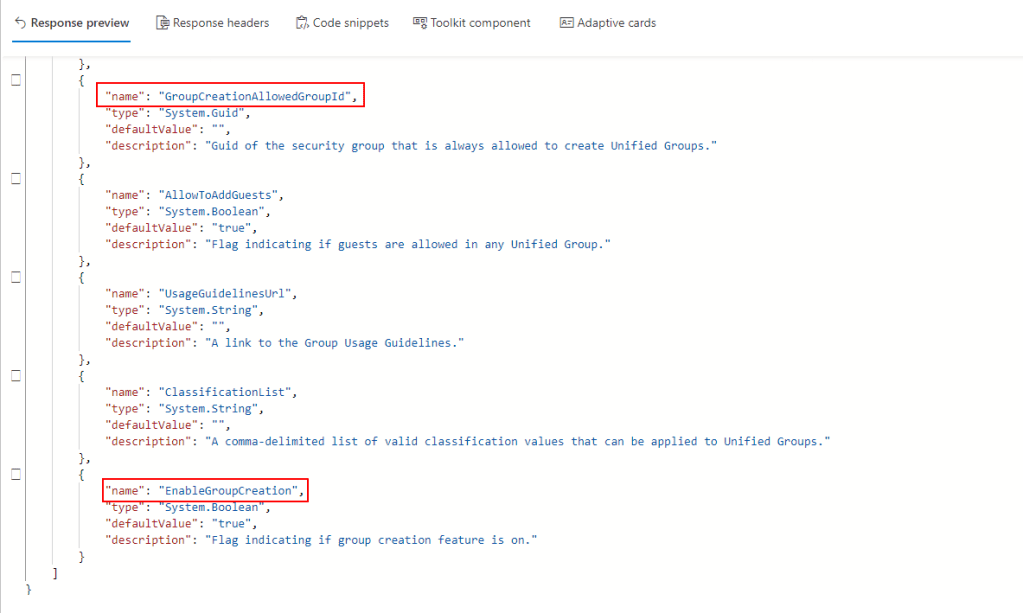
For this specific example, we are interested in the highlighted settings in the figure above.
Step #2: Create a new directory setting
For creating a new directory setting, a request body needs to be formatted including only settings we want to set. The GroupCreationAllowedGroupId sets the group which members are allowed to create groups besides group creation is disabled. Setting can include only a single group id.
{
     "templateId":"62375ab9-6b52-47ed-826b-58e47e0e304b",
     "values":[
     {
           "name":"GroupCreationAllowedGroupId",
           "value":"6bc27a04-569b-4e9c-8ec9-194cb974d9df"
     },
     {
           "name":"EnableGroupCreation",
           "value":"false"
     }
     ]
}
All other settings are added with default values according to settings template.
A new directory setting is created with a HTTP POST call with the formatted request body added to the Request body field.
HTTP POST https://graph.microsoft.com/beta/settings
If successful, the response is HTTP 201 Created and created setting object’s details are available in the response field.
Step #3: Validate and check which directory settings are created
Created settings can be validated calling
HTTP GET https://graph.microsoft.com/beta/settings
This call will return all created directory settings with details and applied settings can be validated.

And as seen in the figure above, settings we configured were successfully set.
Afterword
Graph Explorer is a useful tool to test and discover Graph API’s capabilities, quickly checking settings, listing teams, users, licenses, etc. Also, for minor configuration tasks, it’s handy. I always have it open on the tab when working with Graph API.
When signed in, Graph Explorer should be used with care since it’s connected to the real environment and changes might affect the behavior of services and user experience.
Discover more from Enabling the Future of Work with Matti
Subscribe to get the latest posts sent to your email.
 Enabling the Future of Work with Matti