Meeting branding for Microsoft Teams has been available for a while in public preview as a part of Advanced Communications add-on offering and available with Teams Premium add-on. Branding applies to meetings where the meeting organizer has either of these add-ons assigned.
Note that once these capabilities are officially released (as general availability), Advanced Communications add-on enabled users’ needs to be transitioned to Teams Premium add-on.
More information about Teams Premium licensing: https://learn.microsoft.com/en-us/microsoftteams/teams-add-on-licensing/licensing-enhance-teams
Configuration options
Custom branding settings are controlled with meeting customization policies, which are found from the Microsoft Teams Admin Center. As with other Teams policies, an organization can have multiple meeting customization policies and policies can be targeted based on user role using user or group assignment. Note that Global policy is a baseline policy and applied to all users in the Microsoft 365 tenant. A small Premium icon identifies that these policies require premium licensing.

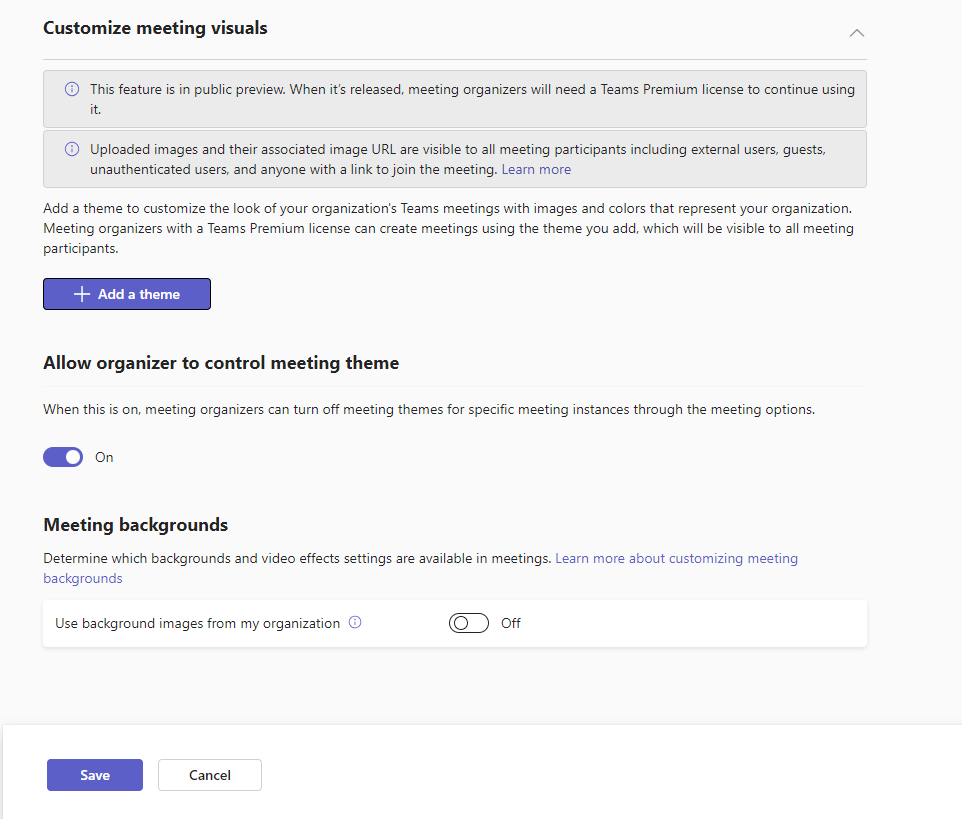
To add branding to the meeting starts with creating a theme for the policy. Only one theme is supported per policy. With multiple customization policies, it is possible to provide different themes for different users. Note that a user can have only policy assigned at a time.
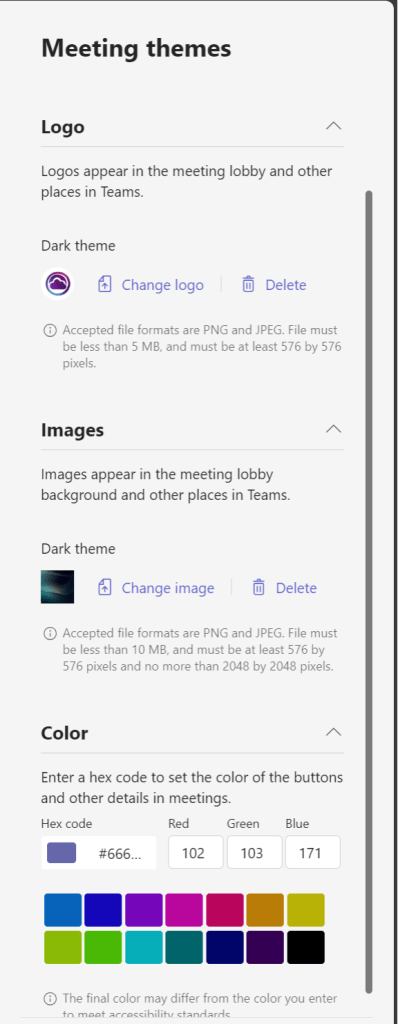
The theme is built up from an optional logo, optional background, and a brand color. The logo should be sized at least 576×576 pixels and less than 5MB. The logo appears centered on the top of the meeting window. The background image should be sized between a minimum of 576×576 pixels to maximum of 2048×2048 pixels. The background scales depend on a user’s device and meeting window size, so visual elements, such as logos or text, might be clipped on the background image. The defined brand color is visible on different buttons and selections in the meeting lobby.
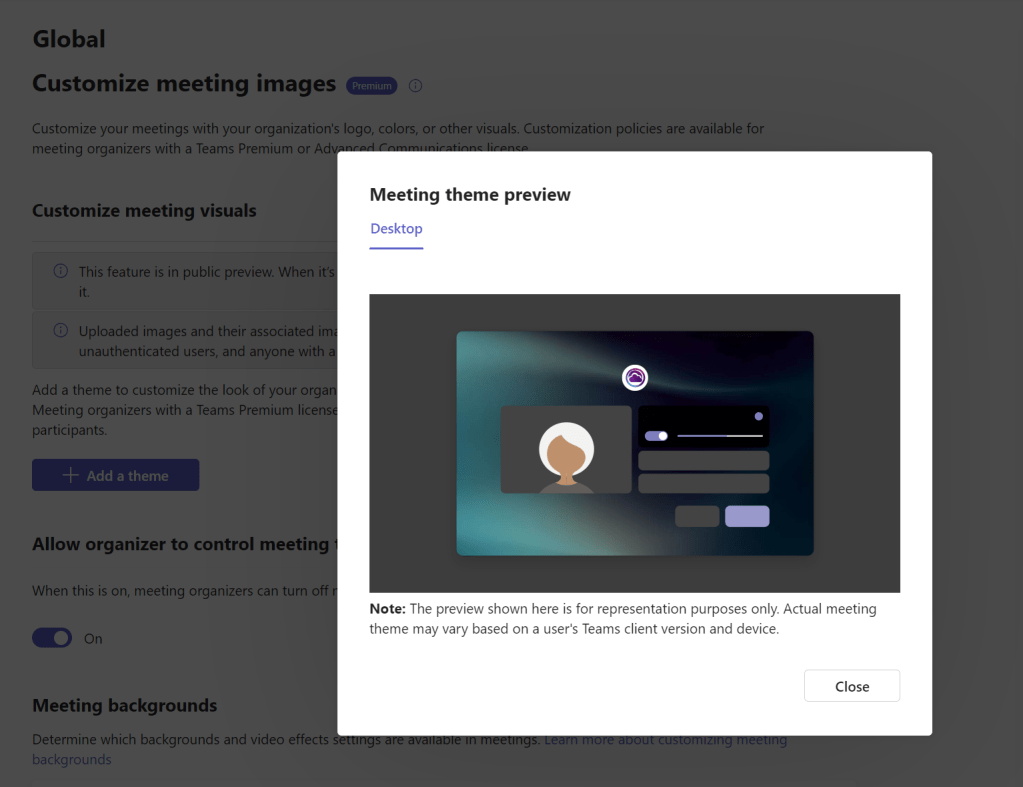
Theme can be previewed before applying it to the policy.
Once theme is done, the policy can be saved. Policy changes will be available for users in a few hours.
How does it look?
The meeting lobby displays the logo and the background. The set brand color is visible on buttons and selections.

Meeting organizers can disable the theme from meeting options if organizer control is enabled on the customization policy.
Centrally distributing meeting backgrounds
Customization policies enable distributing organization’s Teams meeting backgrounds. A total of fifty backgrounds can be added to a policy.
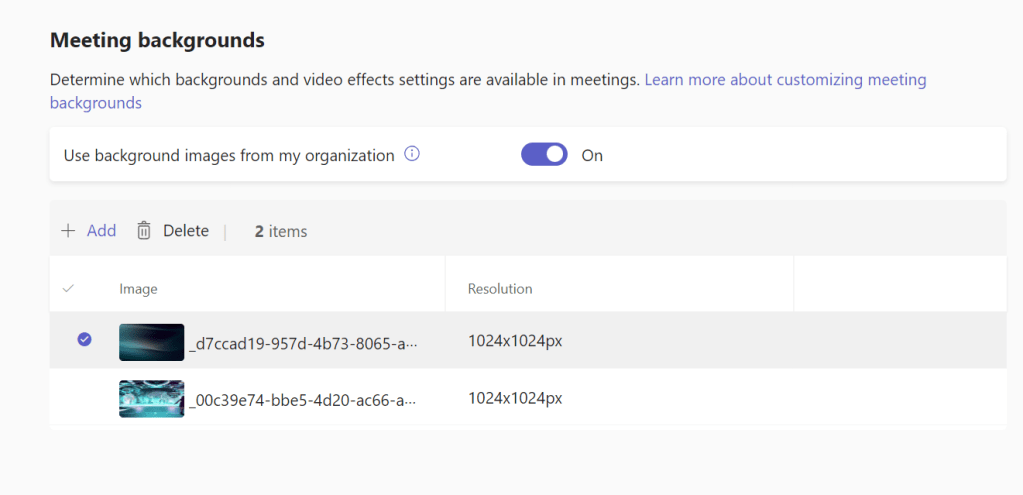
If only organization’s distributed backgrounds are to allowed backgrounds on Teams meetings, the video effects settings should be set as Off or Only background blur on meeting policies.
Afterword
Organizational branding for lobby and using consistent meeting backgrounds creates better brand experience when people are joining meetings. Required Teams Premium add-on can be acquired for people who, for example, work with customers and partners to show organization’s branding. Is this worth getting the Teams Premium add-on for all users? Probably not at first, but Teams Premium offers a lot more like protecting sensitive meetings, AI-authored intelligent recap of meetings, meeting templates for simplifying meeting creation, and enhanced webinar and virtual appointment capabilities.
Detailed overview of Teams Premium capabilities: https://learn.microsoft.com/en-us/microsoftteams/enhanced-teams-experience
Discover more from Enabling the Future of Work with Matti
Subscribe to get the latest posts sent to your email.
 Enabling the Future of Work with Matti