Updated May 14th.
NOTICE: Microsoft has decided to remove Microsoft 365 Copilot Actions starting May 12th, 2025. Sometimes this happens when new features are released to targeted release. Let’s see what the future will bring to Copilot Actions.
Copilot Actions, currently rolling out to Targeted Release customers, appeared on my Microsoft 365 left navigation today. Copilot Actions come with a simple user interface for task automation with the help of artificial intelligence. Keep in mind that this blog discusses the very first release, showcasing possibilities and encouraging users to experiment. As the landing page indicates, things are just starting. For example, tasks related to ‘Prepare’ are marked as ‘Coming soon…’.
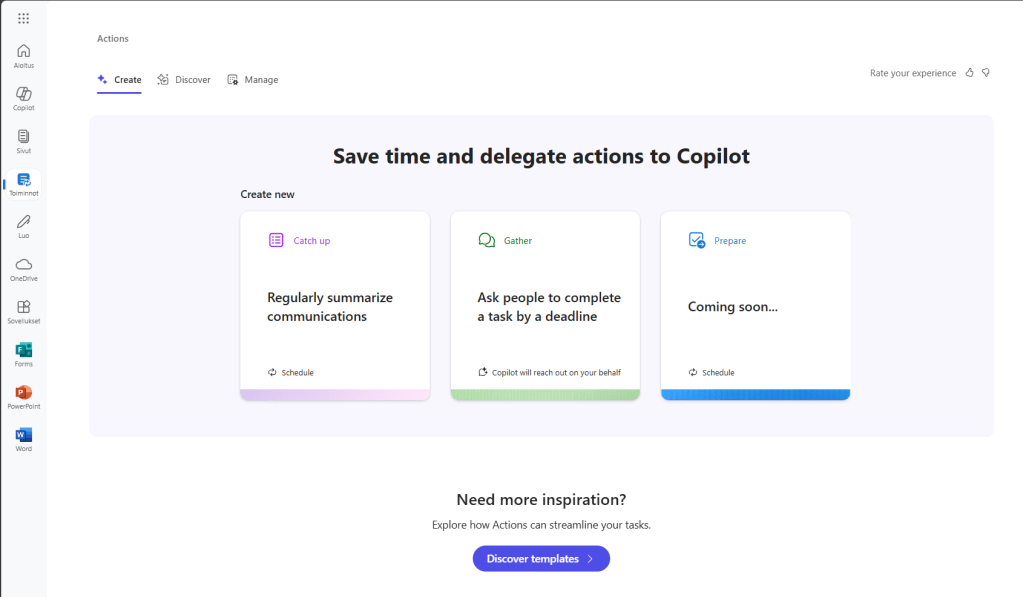
This feature requires Microsoft 365 Copilot license for the user creating and managing Copilot Actions.
Creating the very first Copilot Action
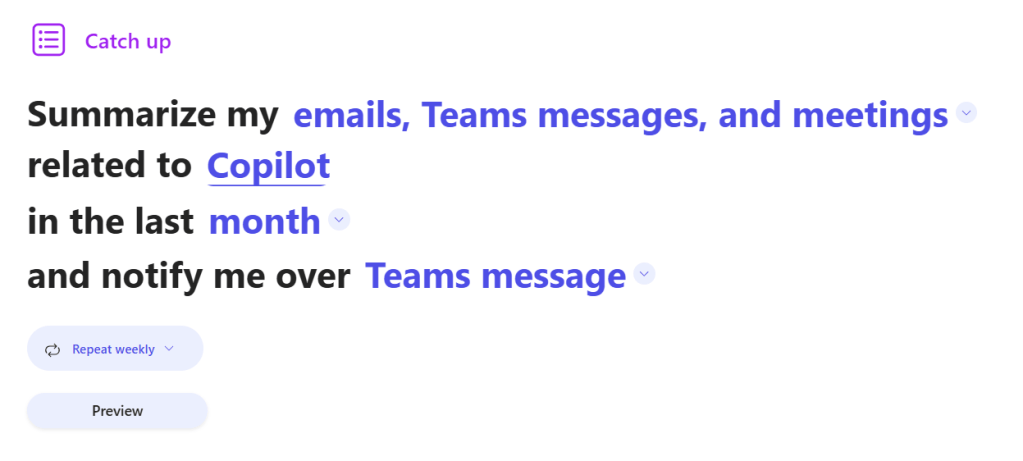
Creating a Copilot Action is straightforward; you can either pick a starting point or select from premade templates. Let’s at first create a basic catch up action. Catch-up actions focus on summarizing emails, Teams messages, and meetings, either individually or collectively. You can type in a specific topic, pick a timeframe and how you want to be notified. For example creating a summary of email, Teams messages and meetings about Copilot from last week and get notified via Teams. And repeat this every week.
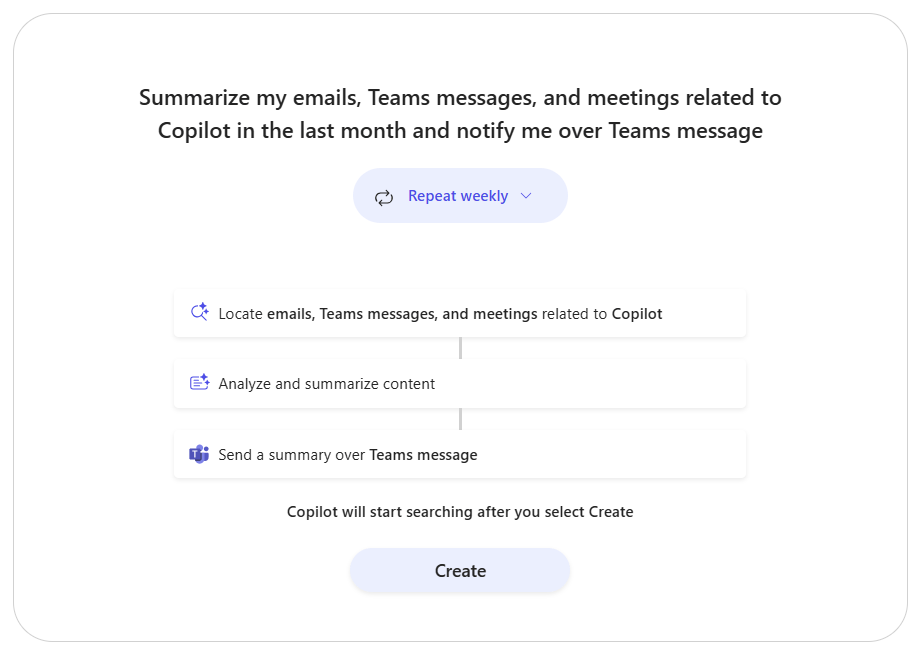
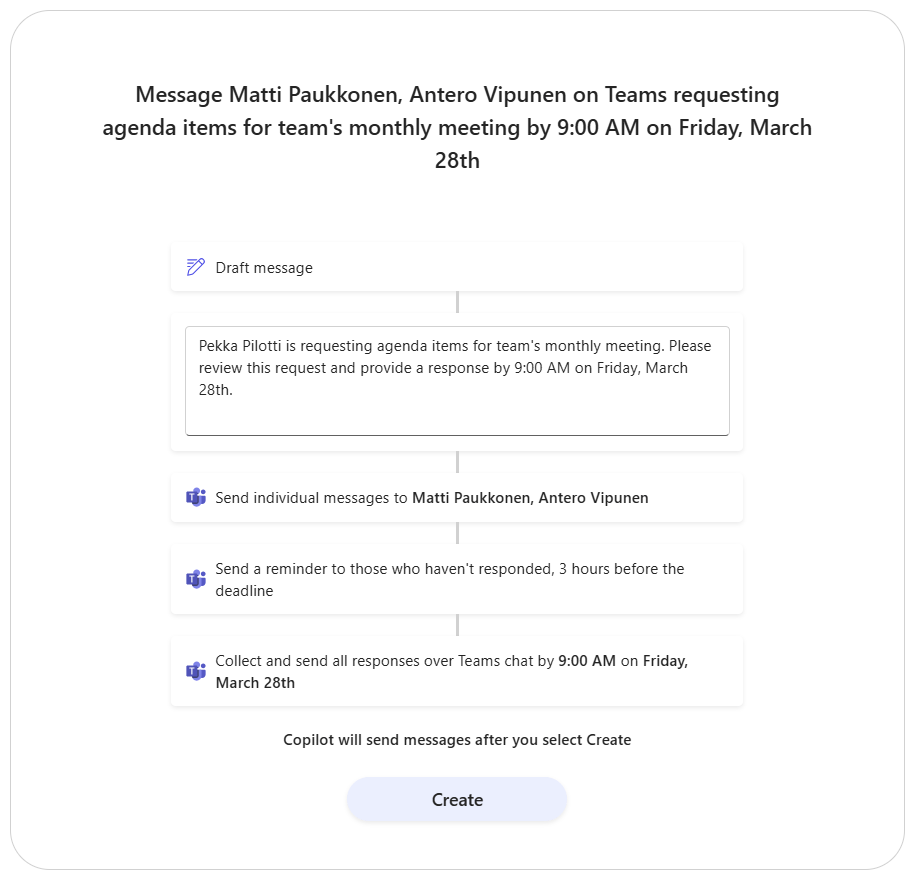
Before creating the action, the actual flow of the action is visualized and explained.
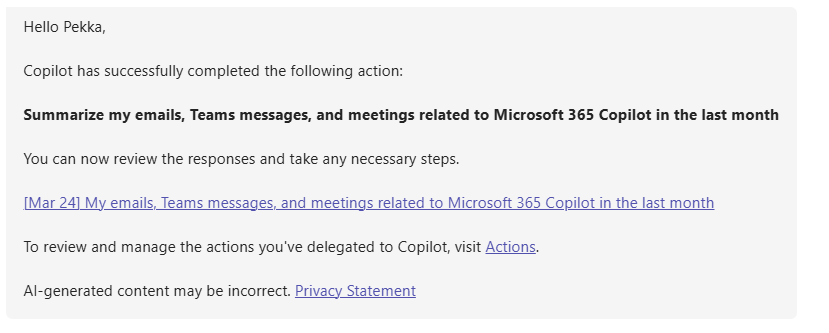
Once the action is created and the first run iscompleted, the Workflows app will ping you in Teams chat.
The results are not summarized to Teams chat message itself, the content is summarized to a Microsoft Loop page which lists email, Teams messages and meeting related to the topic with a summary of the content. The summaries of this example are created from email conversations in Finnish language, so translations also work on the fly.
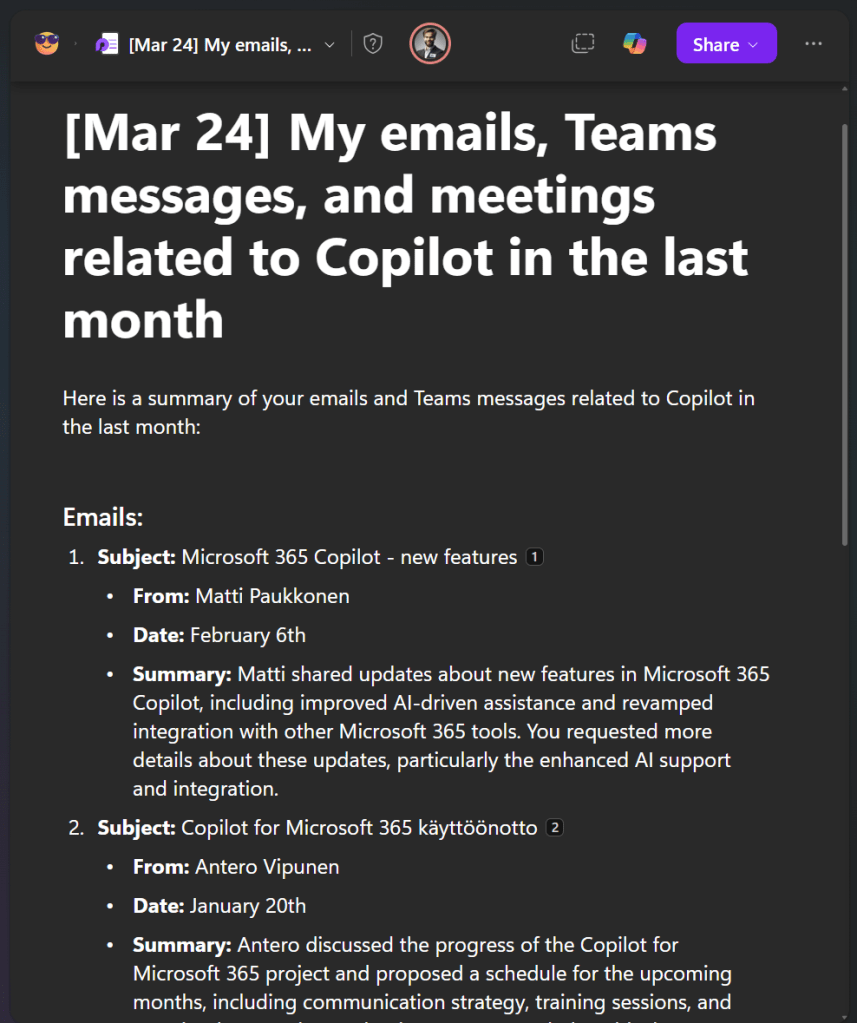
You can also get the summary via email, which is similar and has a link to a Loop page, or a Word document, which is linked from the user’s OneDrive via email.
Creating an action from a template
Let’s then create a gather action using a template. As seen in the image below, gather actions can be used for various topics, but the basic thing is that gather actions ask your colleagues to complete a task, such as review a document or respond to a survey.
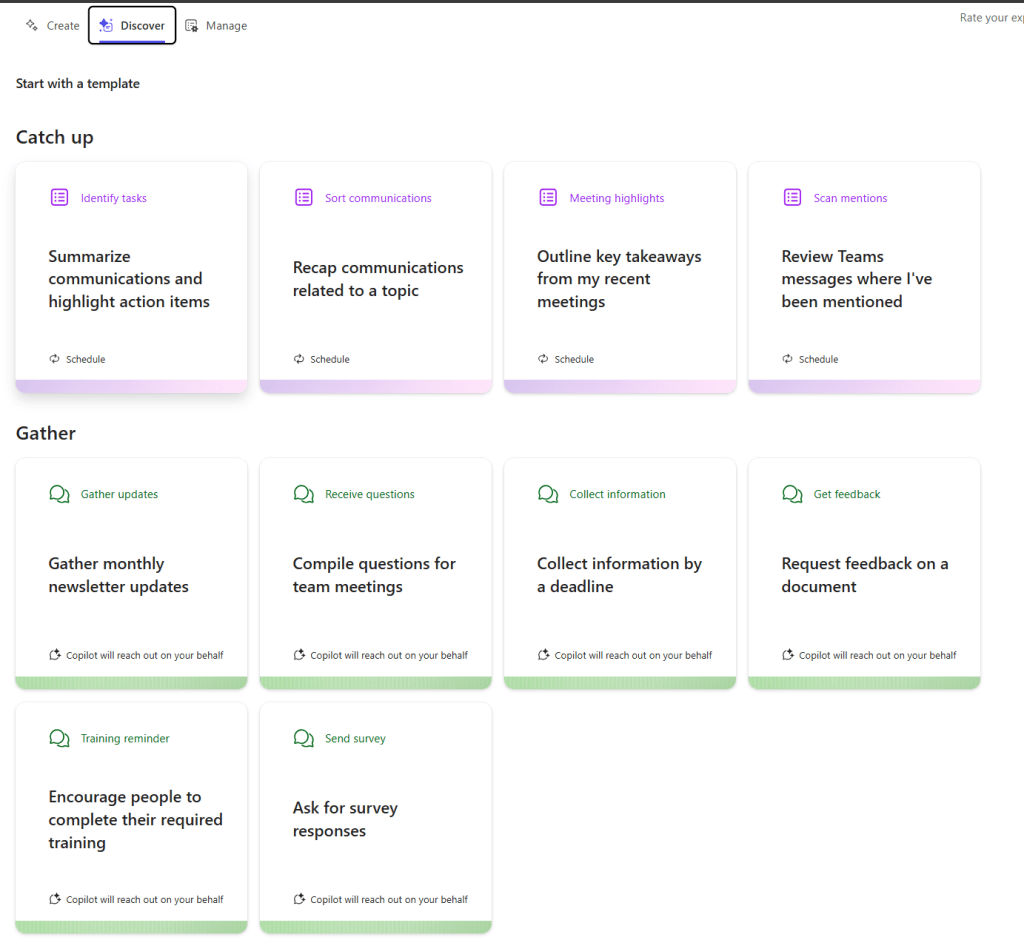
Let’s pick a template to compile questions for team meetings. This specific action notifies selected people on Teams and requesting them complete a task, on this example, adding agenda items to teams’ monthly meeting before set deadline.
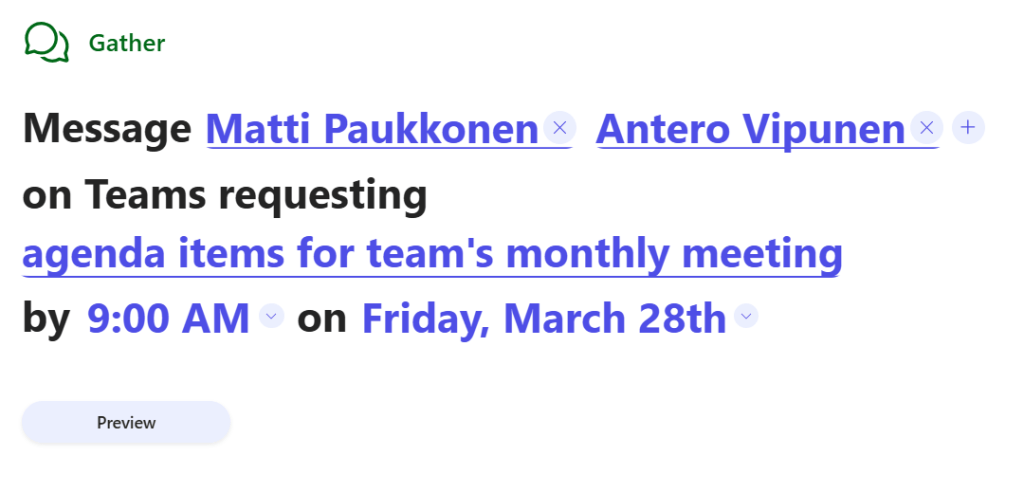
On preview, you can modify the message sent to selected colleagues. Note that the action will also send a reminder three hours before the deadline, if no action has been taken.
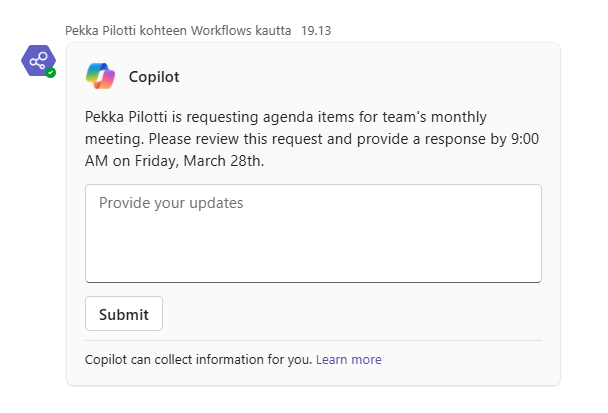
The action will add a task card on the Teams chat between the person sent the action and the person who were asked to provide an update. Updates can be provided directly from the taks card and the sender can follow the actions in the chat as well.
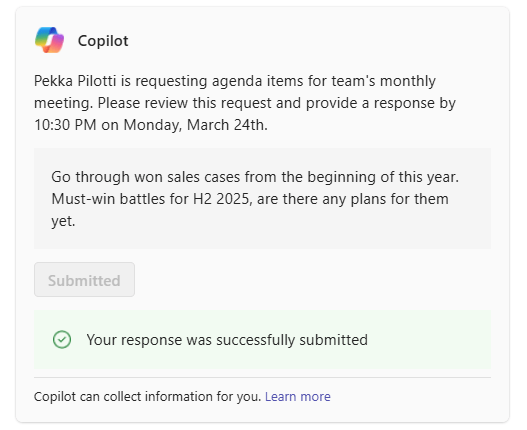
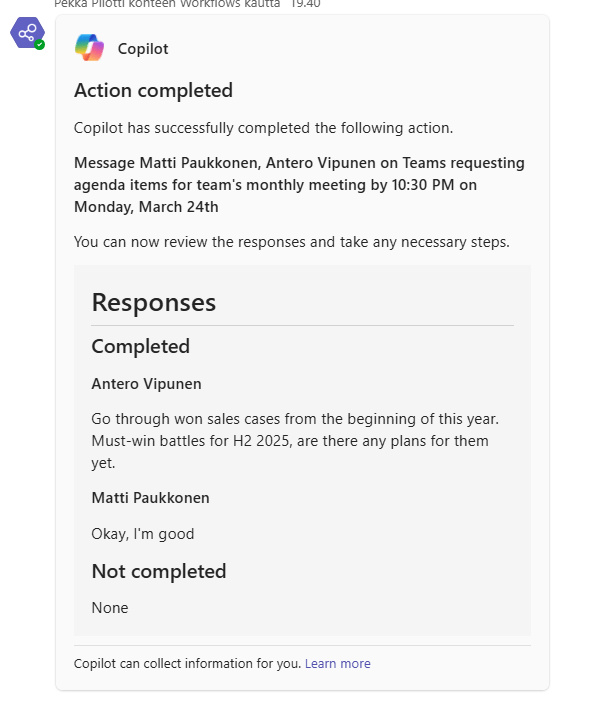
Workflows app on Teams will notify the sender about completion of the task. Nice!
Managing Actions
The ‘Manage’ tab shows a list of actions divided into active and inactive categories. Active actions meaning those which are currently running or are repeating on a set time, and inactive actions are run just once. You can run all created action manually, and start, stop and disable active actions.
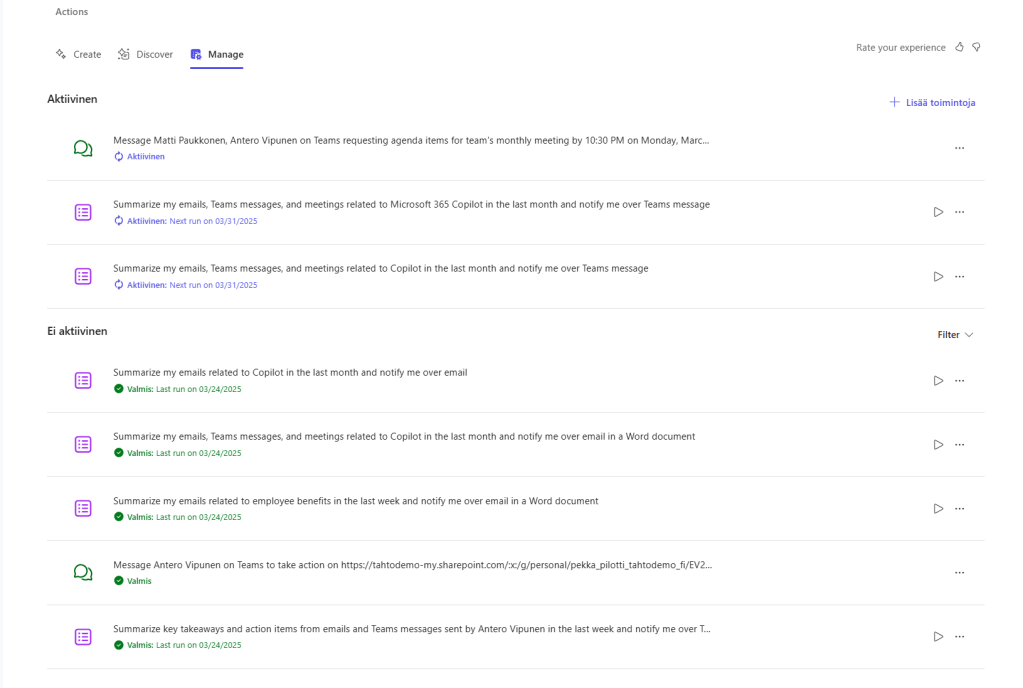
Editing actions is not possible at the moment.
Afterword
I will definitely adopt Copilot Actions to my routines. As I mentioned on the start, it’s still in an early stage, but it’s a very good start to begin experimenting and learning. For example, doing a follow-up on your messages of a certain topic is already very simple and quick to start. With just a few clicks, it’s done. You’ll receive a weekly report on the specific topic. I really see this as a game-changer for doing repetitive AI-tasks, there is no need for weekly prompting of exactly the same thing. I’m really looking forward to the ‘Prepare’ actions. Could I have an assistant automatically remind me of upcoming meetings with enriched details and summaries? Let’s see, hopefully this is coming soon.
Now, someone might say that: “Hey, you could have done this with Power Automate.” Well, basically yes, but could you have done it in half a minute? I guess the real answer is the No. The real power in Copilot Actions is simplicity, and that’s what really enables it for users and starts creating value.
If you already have a Microsoft 365 Copilot license at hand, now is the time to start experimenting and learning.
Discover more from Enabling the Future of Work with Matti
Subscribe to get the latest posts sent to your email.
 Enabling the Future of Work with Matti