The exciting new ability to create SharePoint pages and news posts using Copilot just appeared on Preview! Now, content authors who hold a Microsoft 365 Copilot license can start creating stunning and engaging pages and news posts using their prompts, ready-made templates, and files. Copilot really simplifies the process of creating a page, especially when creating pages from existing materials, such as service descriptions, product presentations, meeting memos, etc.
Create pages with Copilot
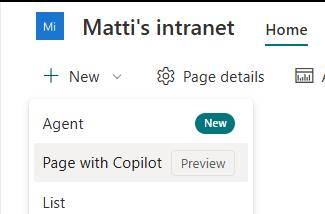
Currently, creating a page with Copilot can be started from the page toolbar by selecting Page with Copilot.
Next step is to choose to create a page from your idea or use a ready-made template.
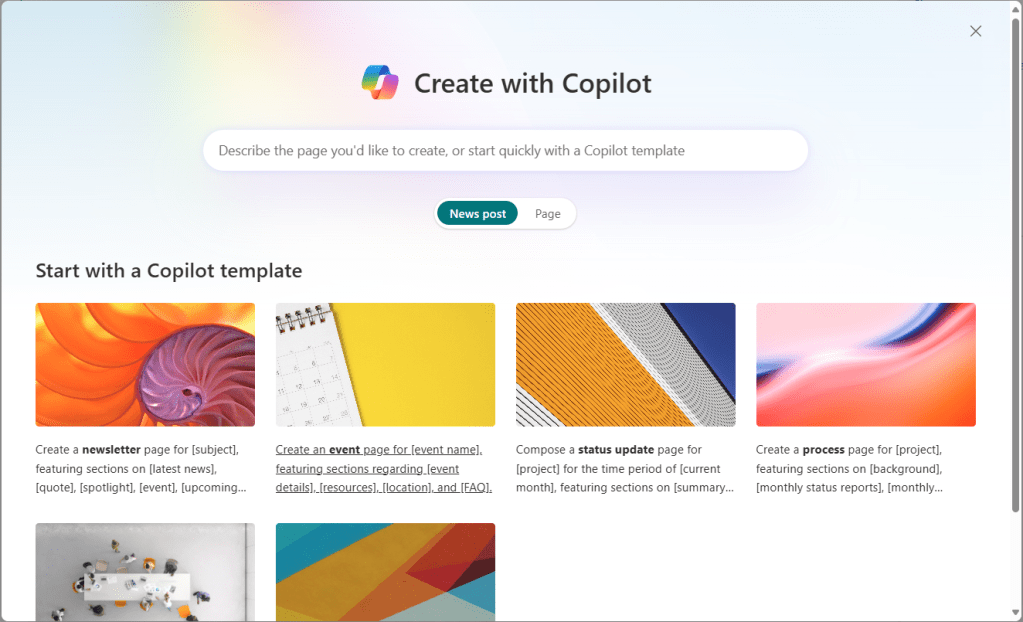
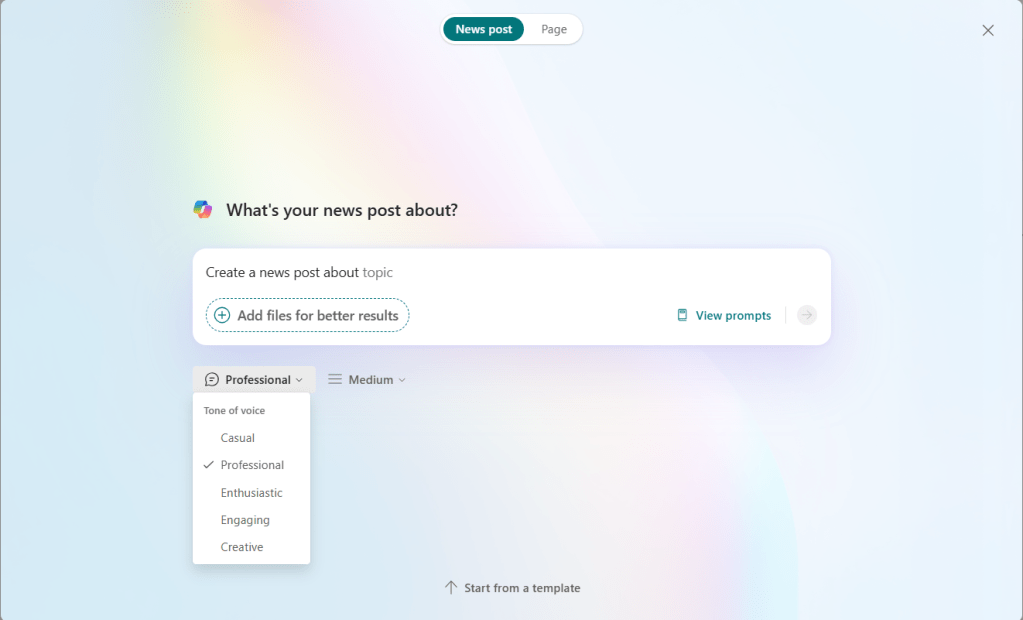
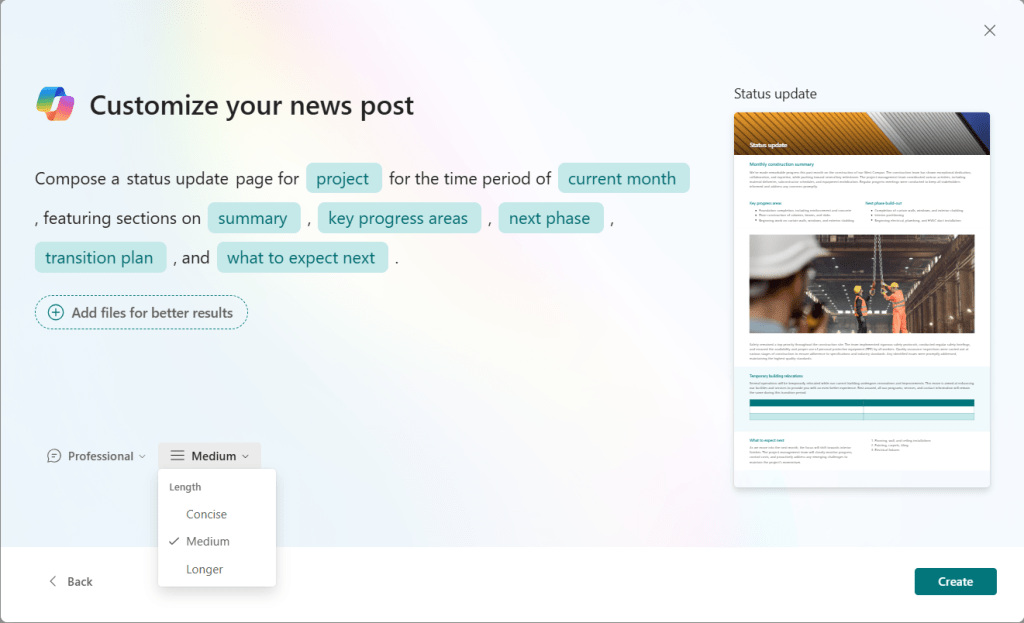
The key difference is that when creating a page or news post by describing, you can formalize your own prompt. When using a template, you just fill out the key information on a ready-made prompt specially crafted for the selected template. You can also adjust the tone and length of the created content. And, use View prompts to get ideas.
This is already powerful, but wait, there’s more. You can also refer to up to five files from the Microsoft 365 tenant, and Copilot crafts content based on your prompt and referred files. Currently, you can use Word and PDF documents, PowerPoint presentations, and Loops.
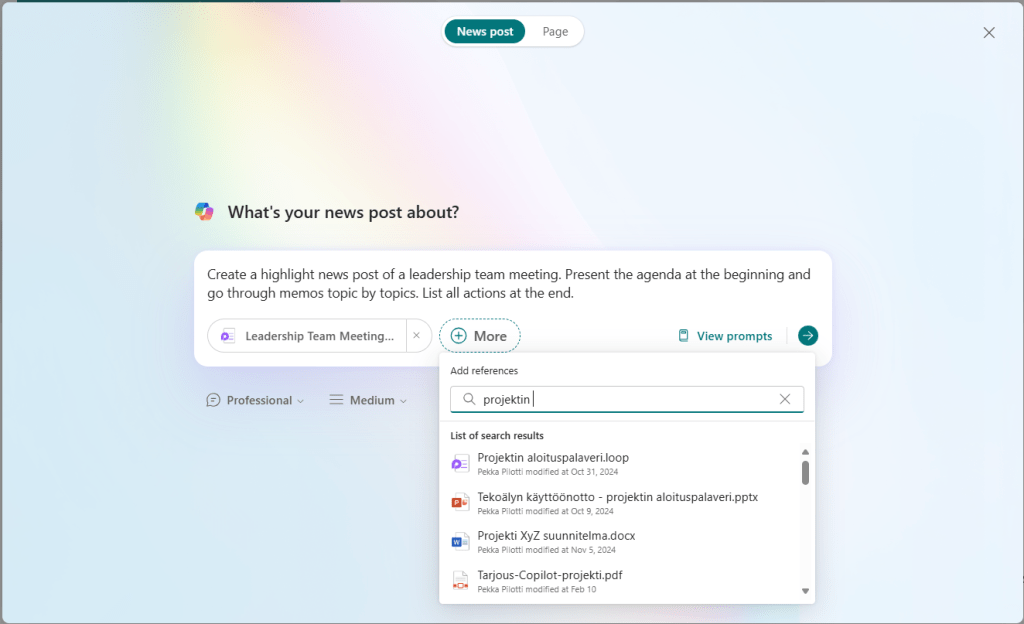
Once you hit Create, Copilot starts creating the page. It creates sections and section layouts, header, and text content. Copilot also adds and formats visuals to the content. Let’s see what happens with a prompt: “Create a highlight news post of a leadership team meeting. Present the agenda at the beginning and go through memos topic by topic. List all actions at the end.” and a reference to the meeting agenda and memo Loop-component.
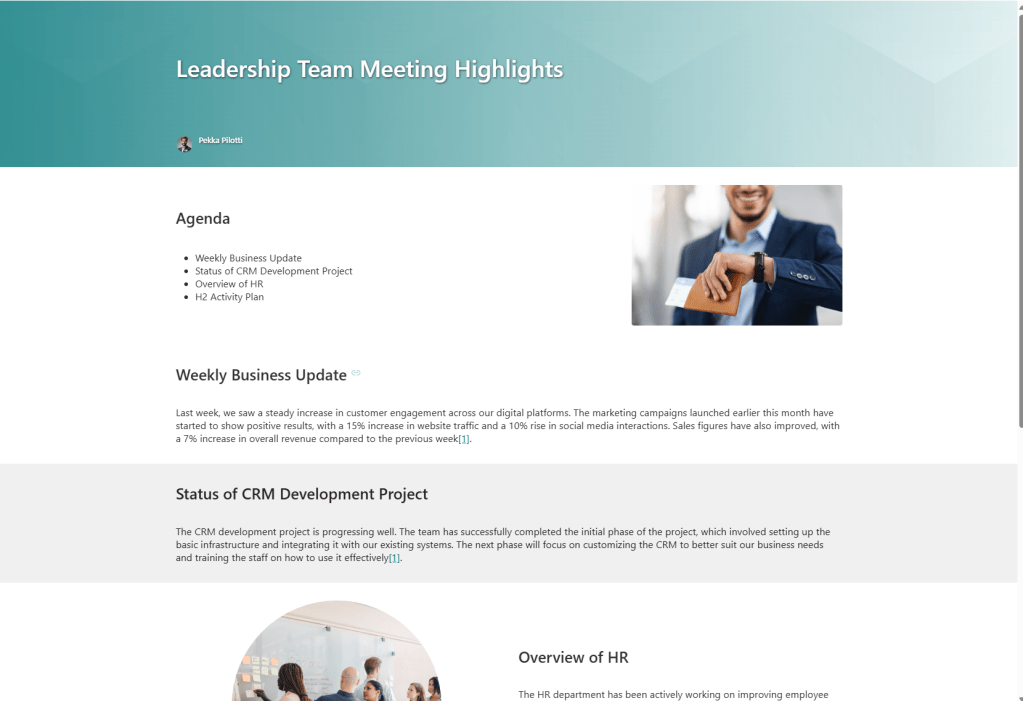
In my opinion, Copilot creates a good starting point, especially when referring to documents. Of course, content needs some fine-tuning and enrichment, but it really saves time from copy-pasting over documents to pages.
One downside is that when you hit Create, you cannot go back anymore. That might lead to the creation of lots of draft pages. And if you choose to discard Copilot’s suggestion, you will end up with an empty page. So, remember to remove created pages that are not meaningful.

Adjust SharePoint content with Copilot
Did you know that you can fine-tune your text in SharePoint pages with Copilot?
Copilot offers options to auto-rewrite and change the tone and length of the text. Just select a text web part on a page or highlight a text within a text web part, and open Copilot- menu from the text web part’s toolbar.
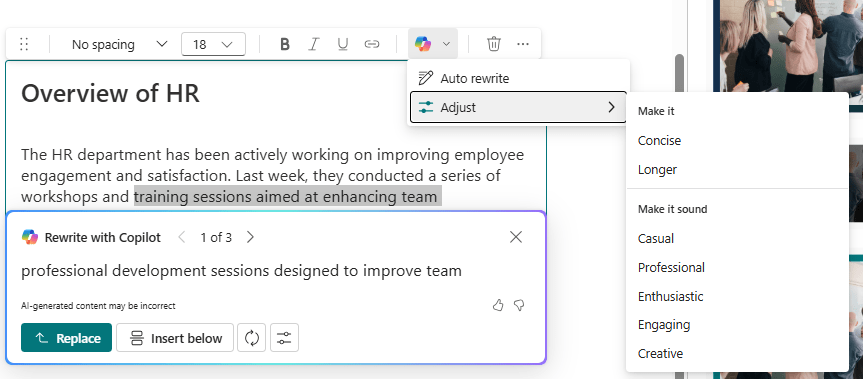
Copilot will create three suggestion based on your text to choose from. Original text can be replaced or new version inserted below. I quite commonly take both version side-by-side and craft the final version based on those. I also see Microsoft 365 Copilot Chat as a helpful tool for fine-tuning content, for example asking five different versions of a paragraph of text and formalizing the final from those versions.
Afterword
These Copilot features again demonstrate the power of large language models – creating content suggestions based on your ideas and available content. Keep in mind that this is the first version and I’m certain it will improve in the future and bring more flexible options for controlling content creation.
Discover more from Enabling the Future of Work with Matti
Subscribe to get the latest posts sent to your email.
 Enabling the Future of Work with Matti