Publishing and using your organization’s brand images in SharePoint pages and news articles have been available for years. I remember writing blog posts of organization asset libraries almost five years back. Now, it’s finally time to utilize your brand images in PowerPoint and Word with the help of Microsoft 365 Copilot. SharePoint organization asset libraries are still the key here. If you have them already configured and used them, a small configuration change is needed.
Using stock photos, brand images and AI-generated images in PowerPoint and Word
First, let’s look at how you can use your brand images, Microsoft-provided stock photos and AI-generated images on your Word documents and PowerPoint presentations. You can find hints on how to add images to a document or presentation in the Copilot Prompt Gallery.

Copilot Prompt Gallery can be opened from the small View prompts icon on the Copilot sidebar’s prompt input field.

There are three example prompts available:
- “Create an image of [description]” uses AI to generate the image based on the description
- “Suggest stock image of [description]” searches images from the Microsoft-provided stock image gallery based on the description
- “Suggest brand images of [description]” search images from organization’s image asset libraries
How it actually works?
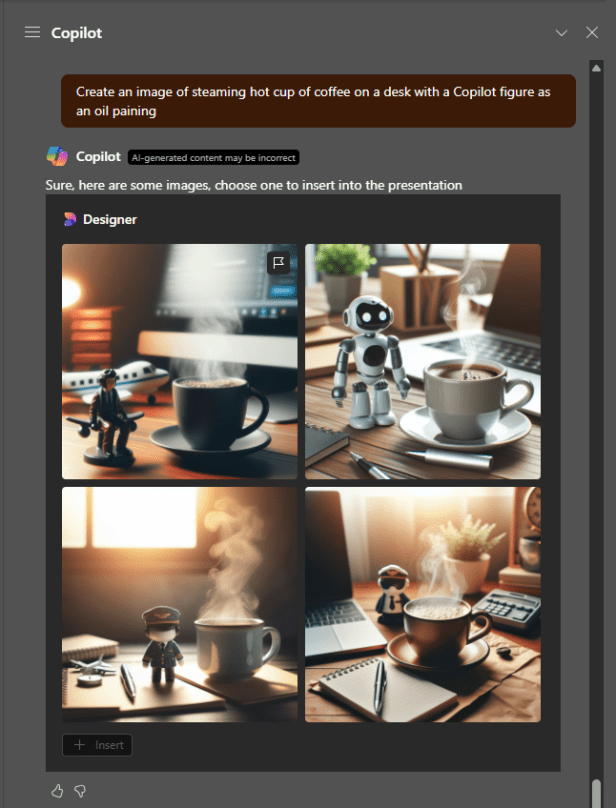
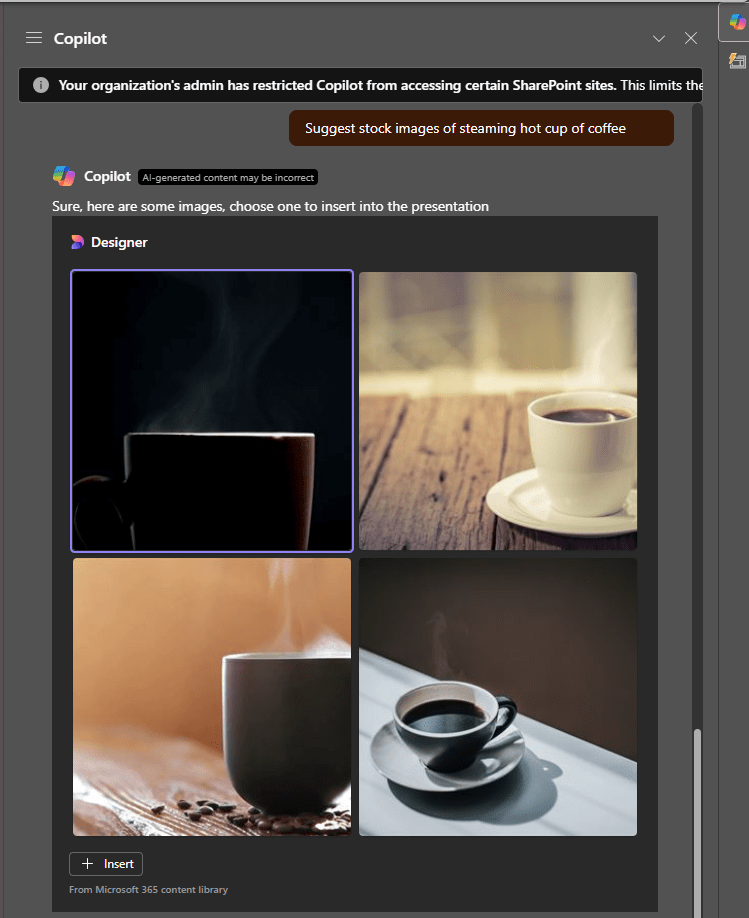
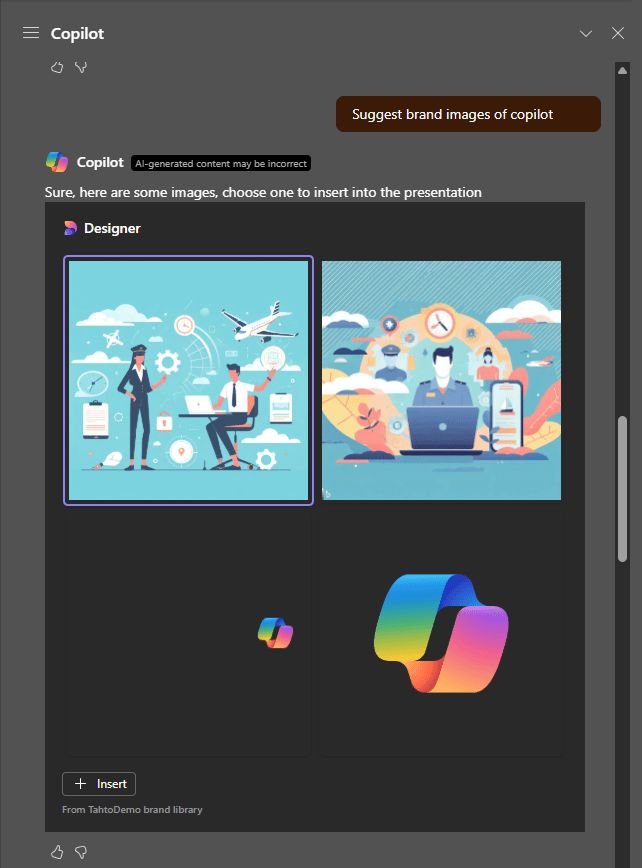
You can identify the source of the images from below the images. From Microsoft 365 content library means that images are fetched from Microsoft’s stock photo library, and From <org name> brand library that it’s fetched from the brand library.
Creating a library for images
If you already have a document library for brand images, you can use that same library as the source for brand images on SharePoint, PowerPoint and Word. If you don’t yet have one, just create a new document library. I recommend having the library on a site where all users have access, for example intranet, brand center, etc. Notice that “Everyone except external users” permissions need to be set on the library or inherited from the site level. You can alter permissions within the library, if limiting the visibility of images is required. Note that only 100 permission changes at the file or library level are supported.
Configuring the library as organization asset library
The next step is to configure the library as an organization asset library for images. You need the SharePoint Online Management Shell PowerShell module for it, and for enabling images for Copilot, the version required needs to be above 16.0.24915.12000.
Connect to the Management Shell to SharePoint using:
Connect-SPOService -Url https://<tenant-name>-admin.sharepoint.comNext, set the library as asset library using:
Add-SPOOrgAssetsLibrary -LibraryUrl <https://tenant.sharepoint.com/BrandBank> -CdnType Private -OrgAssetType ImageDocumentLibrary -CopilotSearchable $trueSelect the CdnType that best matches the sensitivity of your images. I recommend using Private, which honors SharePoint permissions.. (You can read more about asset libraries on my blog post: https://mattipaukkonen.com/2019/09/26/sharepoint-organization-asset-libraries-explained/). Optionally, you can use -ThumbnailUrl to configure thumbnail for the library. Thumbnail needs to reside in the same library.
While running, PowerShell module will ask to “Add a new Tenant CDN origin“ pointing to the library Url. This needs to be approved. That’s it!
Available organization asset libraries can checked with:
Get-SPOOrgAssetsLibrary
As seen in the screen capture above, I have two libraries for images and one for Office templates.
Now, if you already have an organization asset library for brand images available, but it’s not working on PowerPoint or Word, you are missing a crucial setting introduced recently. You can set the library as searchable for Copilot with command below:
Set-SPOOrgAssetsLibrary -LibraryUrl <library Url> -CopilotSearchable $true -OrgAssetType ImageDocumentLibraryWhen a new library is configured as an organization asset library, it takes a little while to provision the library content to Content Delivery Network (CDN).
Things to consider with brand images
This feature really simplifies usage of organization’s brand images inside of presentation and documents. Images are managed and published from a single location, and the best of all users doesn’t need to do anything to get access.
When publishing your brand images for Copilot, consider these things.
- Use the image only once, otherwise Copilot may return the same image multiple times on results
- Use only image files and supported image formats: JPEG, PNG, SVG, BMP, GIF, TIFF, WEB P, HEIF, ICO. Copilot will return other files in the search results, but cannot show them.
- Add tags, description and location to the files to improve search results.
- Only one library can be set as searchable for Copilot
Related posts to organization asset libraries

Discover more from Enabling the Future of Work with Matti
Subscribe to get the latest posts sent to your email.
 Enabling the Future of Work with Matti